/

Account Management

Getting Started

How do I sign up my company to Scafflinq?

You can create your Scafflinq account in two ways: on the web or in the mobile app.
The steps are very similar – choose whichever option suits you best.

Option 1 - Signing up on the web

1

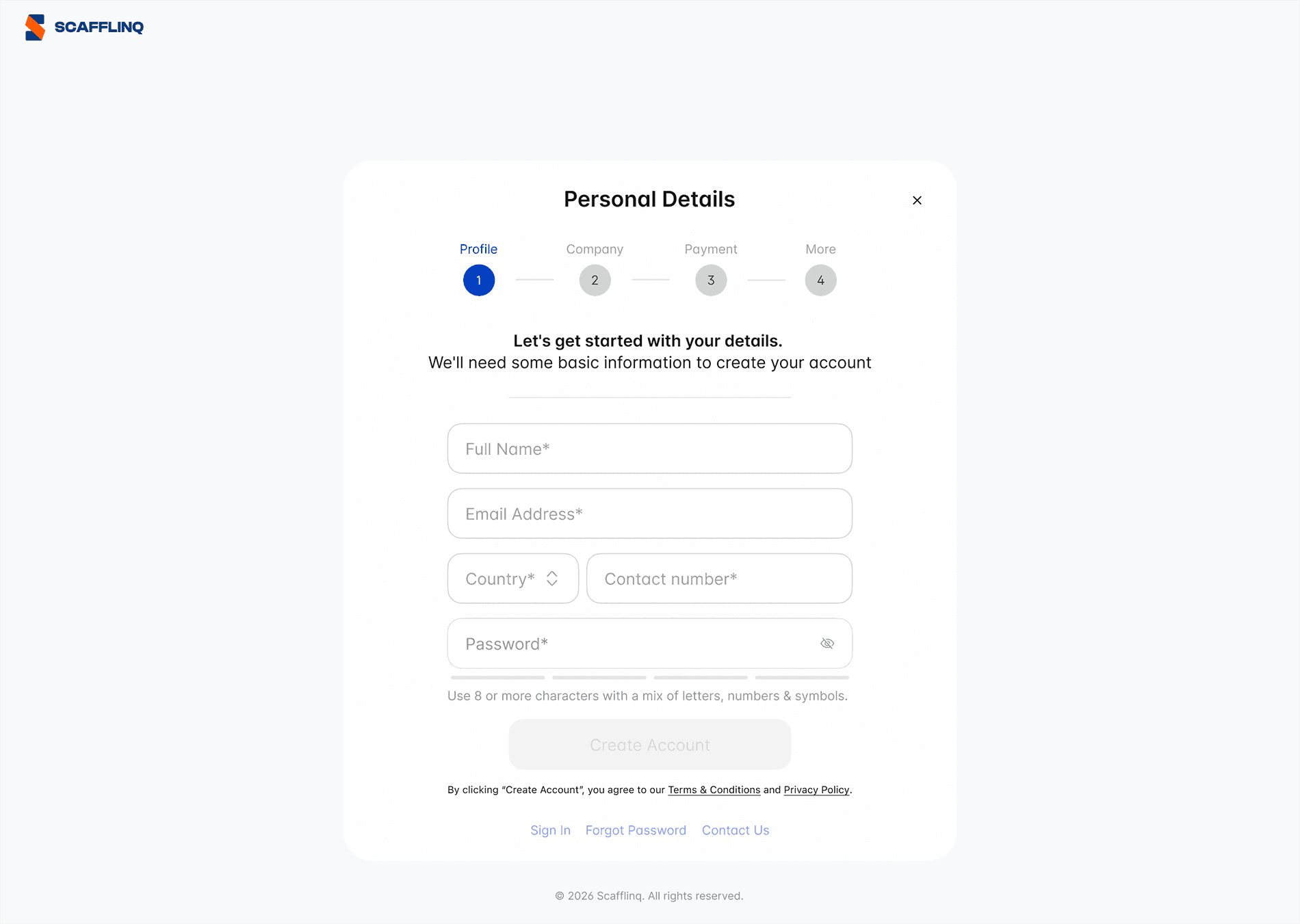
Open your browser and navigate to: https://app.scafflinq.com/#/v2/signup
1

Open your browser and navigate to: https://app.scafflinq.com/#/v2/signup

1

Open your browser and navigate to: https://app.scafflinq.com/#/v2/signup


2

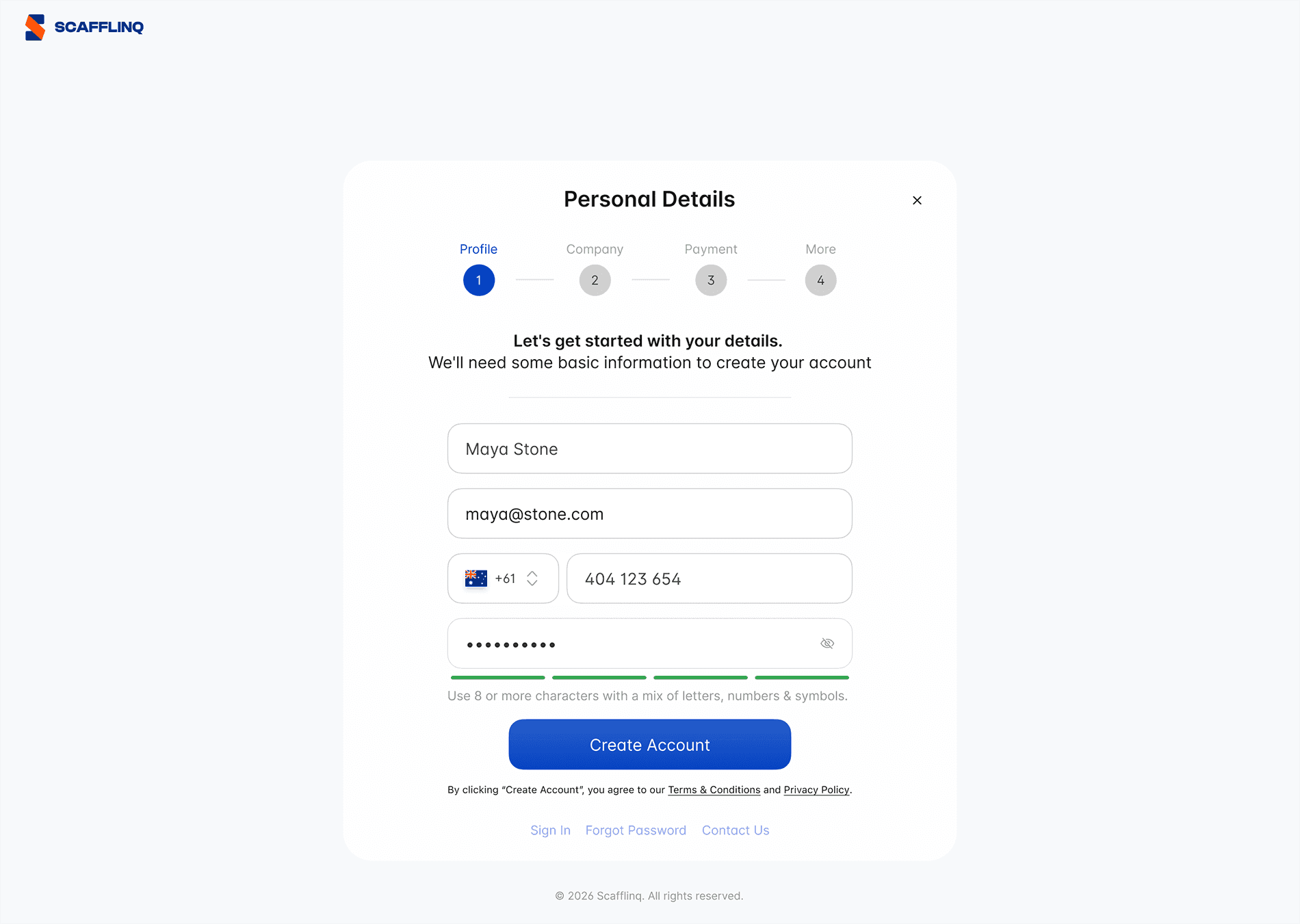
Fill in your personal details; fields marked * are required.
2

Fill in your personal details; fields marked * are required.

2

Fill in your personal details; fields marked * are required.


3

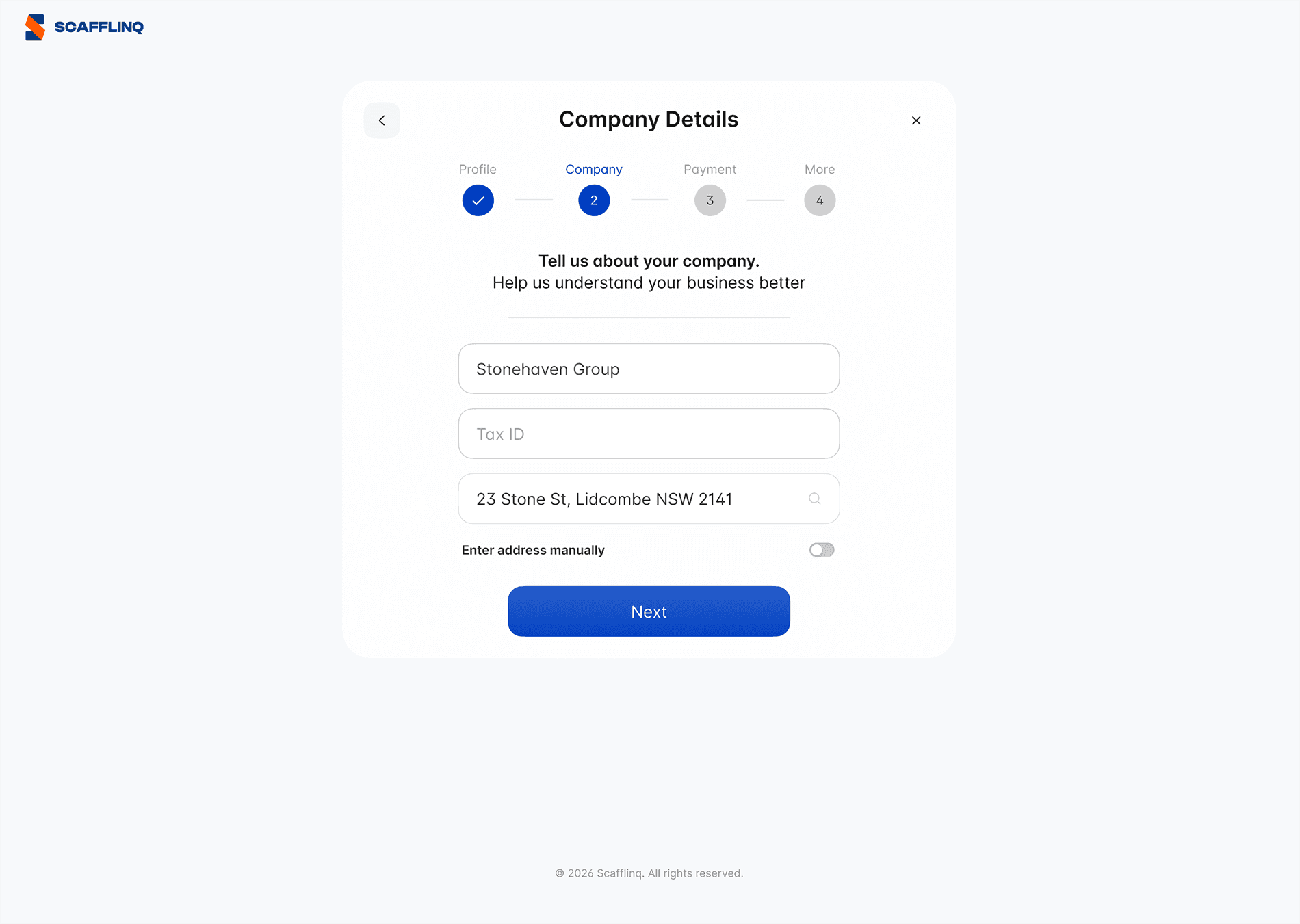
Add your company details (name, tax/business ID if applicable, and address).
3

Add your company details (name, tax/business ID if applicable, and address).

3

Add your company details (name, tax/business ID if applicable, and address).


4

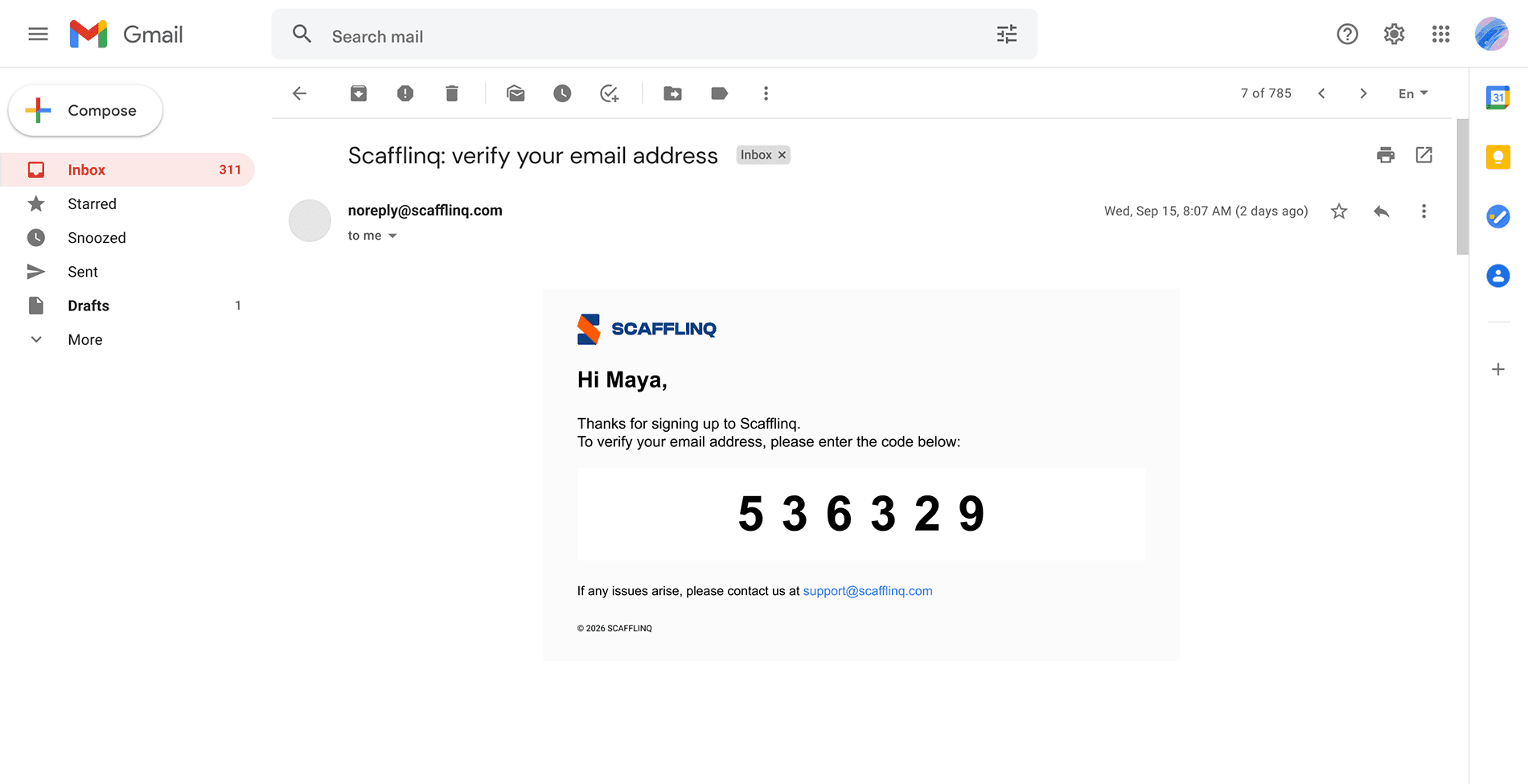
We’ll email you a verification code; check your inbox and Spam/Junk folder.
4

We’ll email you a verification code; check your inbox and Spam/Junk folder.

4

We’ll email you a verification code; check your inbox and Spam/Junk folder.


5

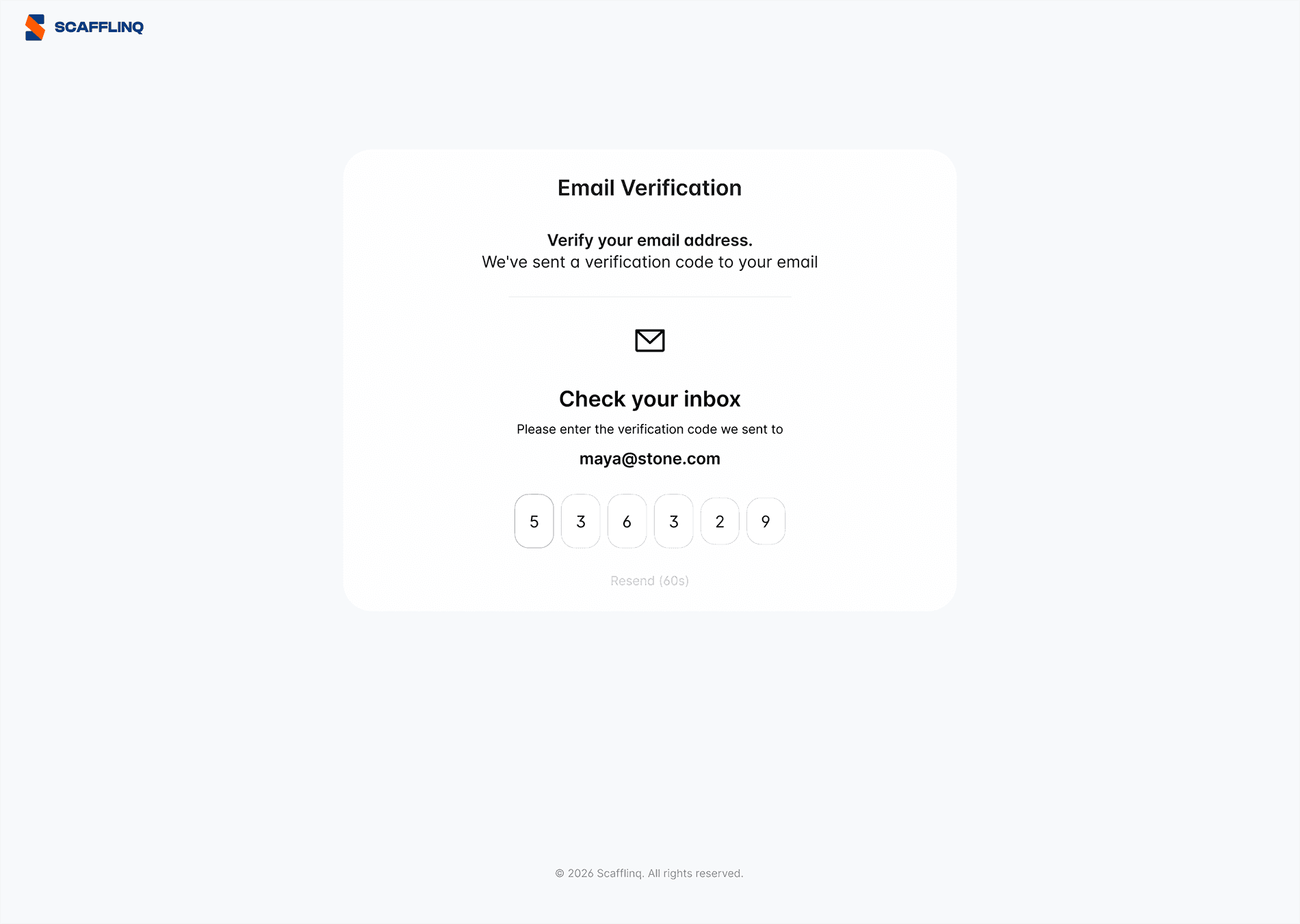
Enter the verification code on screen, or request a new one if needed.
5

Enter the verification code on screen, or request a new one if needed.

5

Enter the verification code on screen, or request a new one if needed.


6

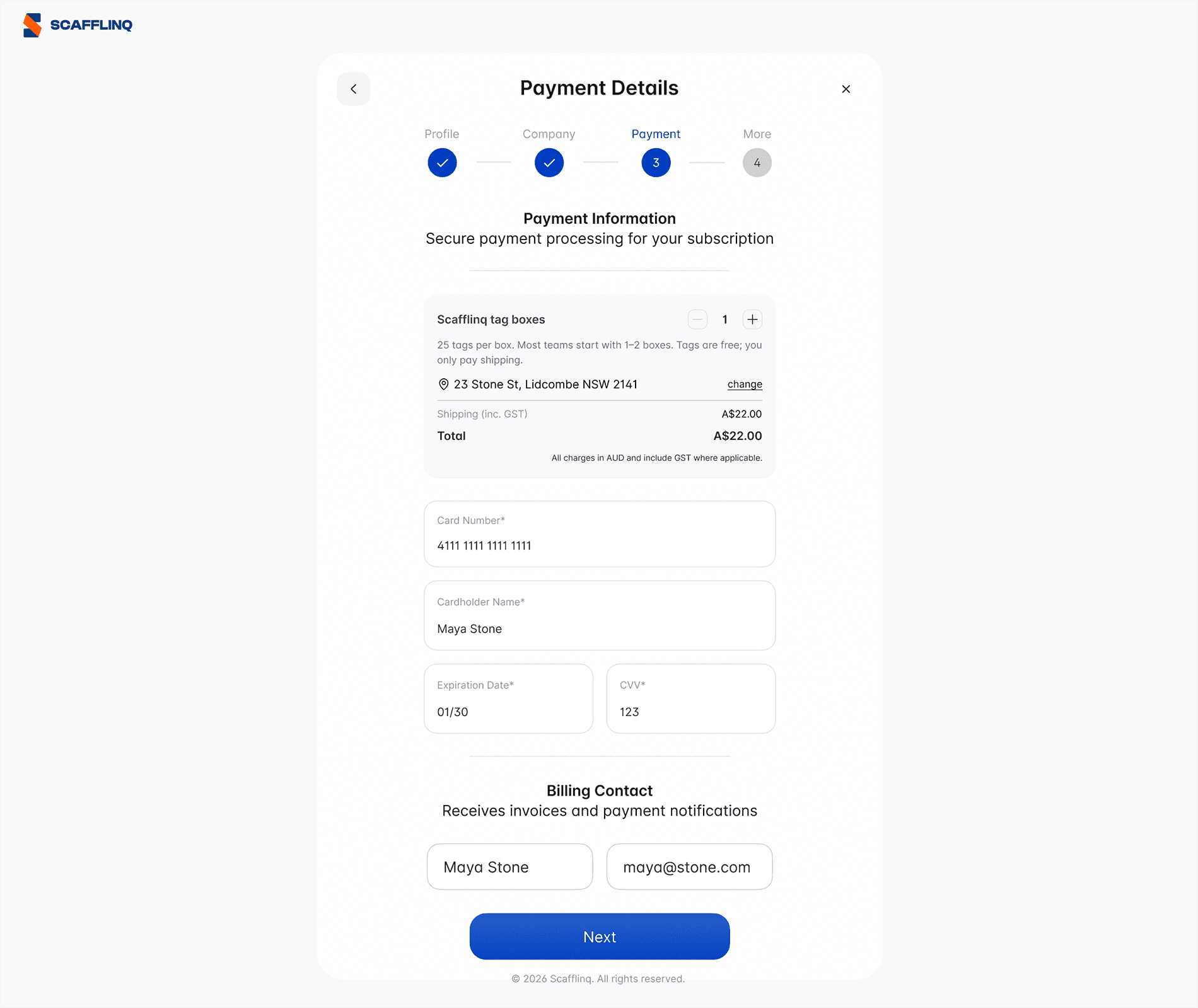
Select how many boxes of tags to order, then add your card and billing details.
6

Select how many boxes of tags to order, then add your card and billing details.

6

Select how many boxes of tags to order, then add your card and billing details.


7

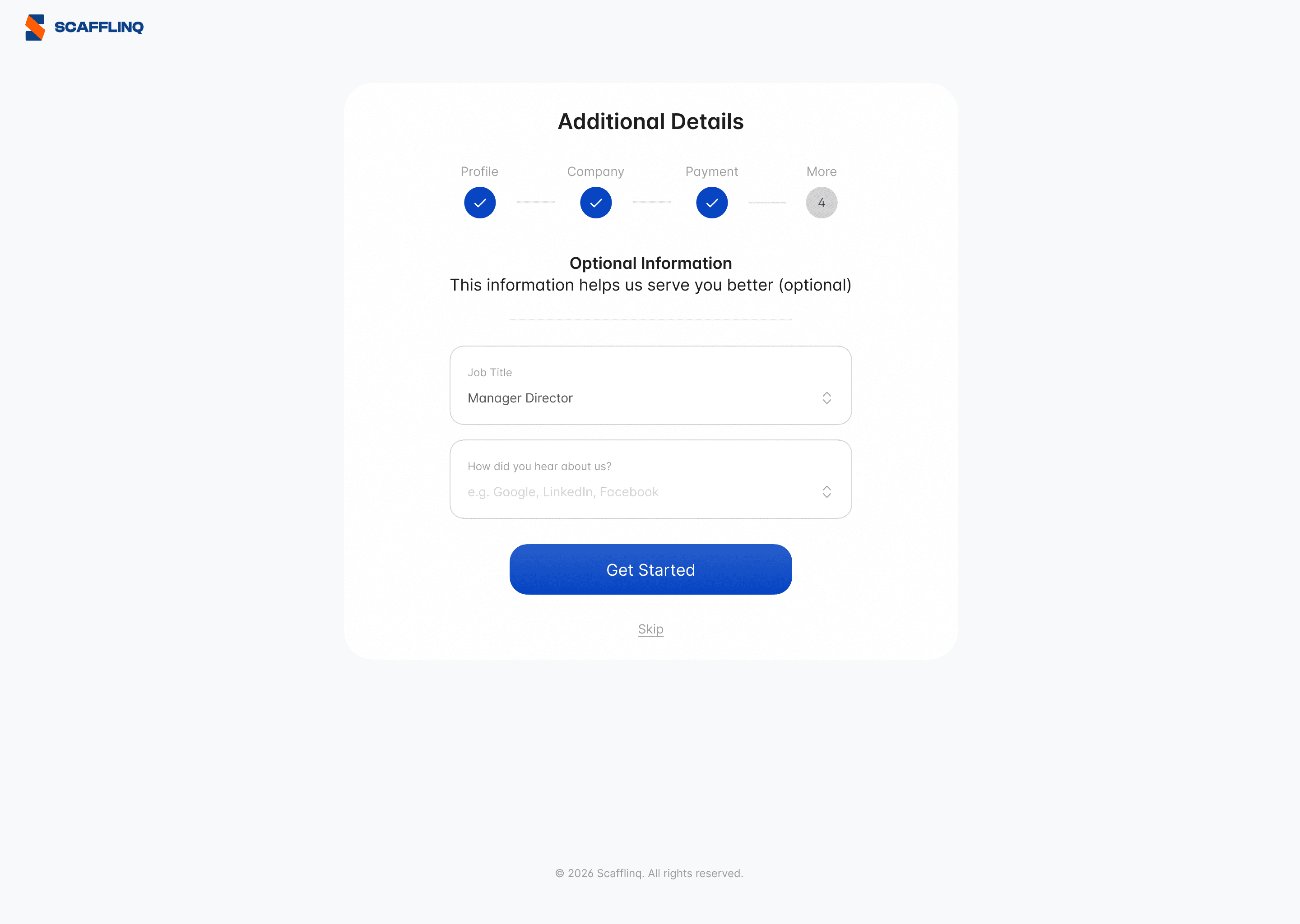
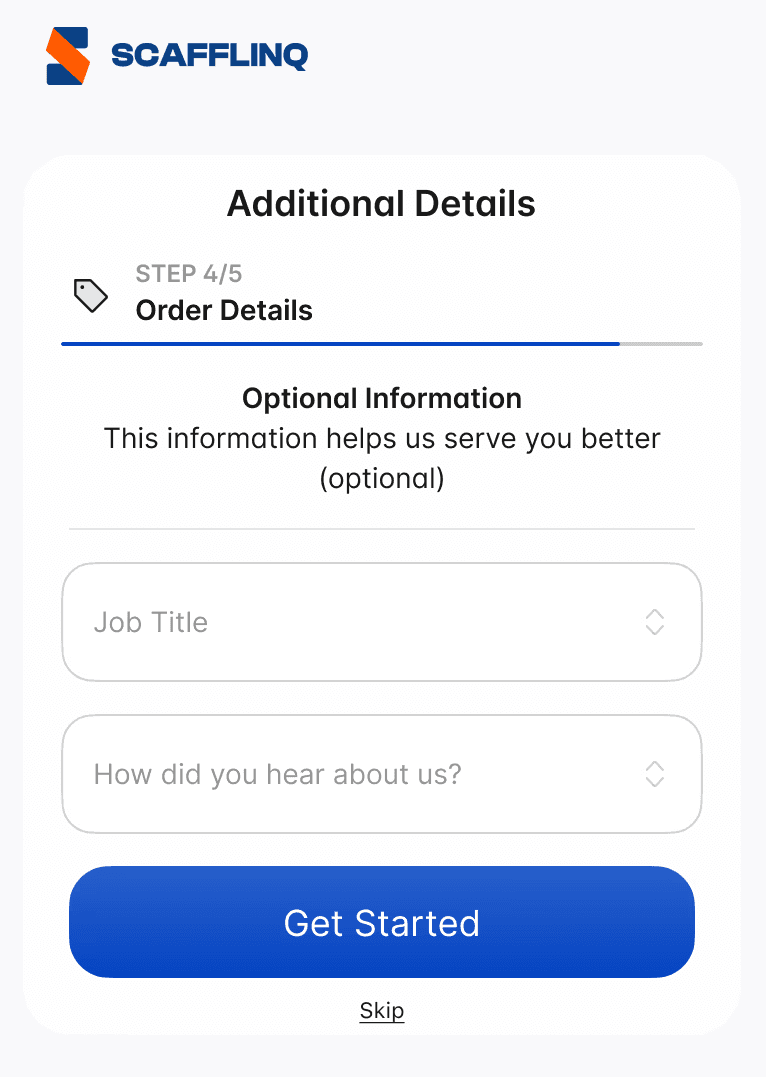
Optionally, add your job title and how you heard about Scafflinq, then click "Get Started".
7

Optionally, add your job title and how you heard about Scafflinq, then click "Get Started".

7

Optionally, add your job title and how you heard about Scafflinq, then click "Get Started".

Congratulations

Your Scafflinq account is created and your starter order will be processed. You’ll be redirected to your Reporting dashboard, where you can see an overview of your account and start setting up projects, scaffolds and inspections.

Congratulations

Your Scafflinq account is created and your starter order will be processed. You’ll be redirected to your Reporting dashboard, where you can see an overview of your account and start setting up projects, scaffolds and inspections.

Congratulations

Your Scafflinq account is created and your starter order will be processed. You’ll be redirected to your Reporting dashboard, where you can see an overview of your account and start setting up projects, scaffolds and inspections.

—————

Option 2 - Signing up in the mobile app

1

Install the Scafflinq app and open it once it's installed.

1

Install the Scafflinq app and open it once it's installed.

1

Install the Scafflinq app and open it once it's installed.


2

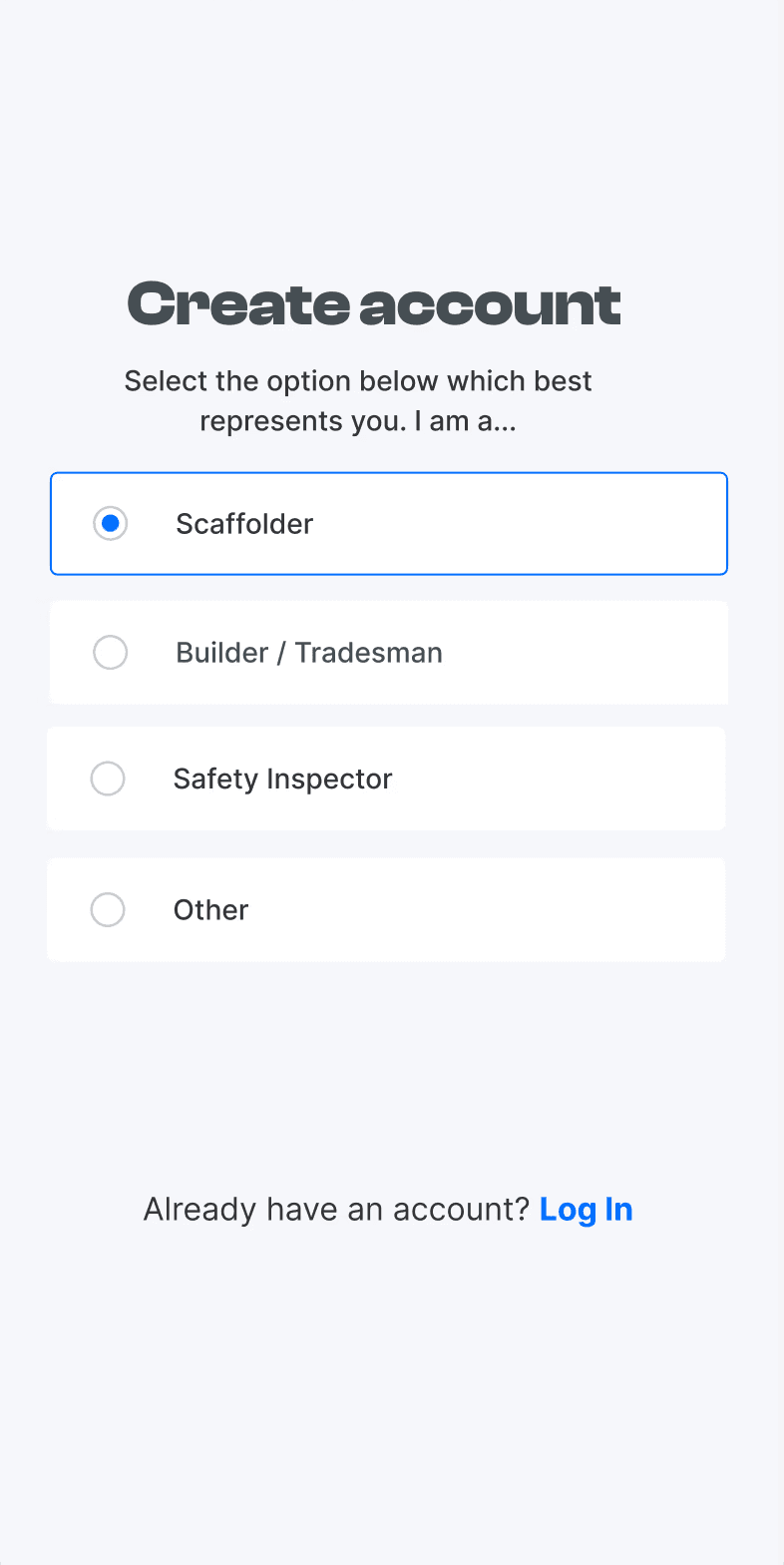
Select the option which best represents you.

2

Select the option which best represents you.

2

Select the option which best represents you.

  • If you own or manage scaffolding and need to perform inspections and manage compliance, choose Scaffolder.

  • If you're a builder, tradesperson, safety inspector or other role and only need to view scaffold status, you don't need an account. Just scan the QR code on the tag to see its status and details.

3

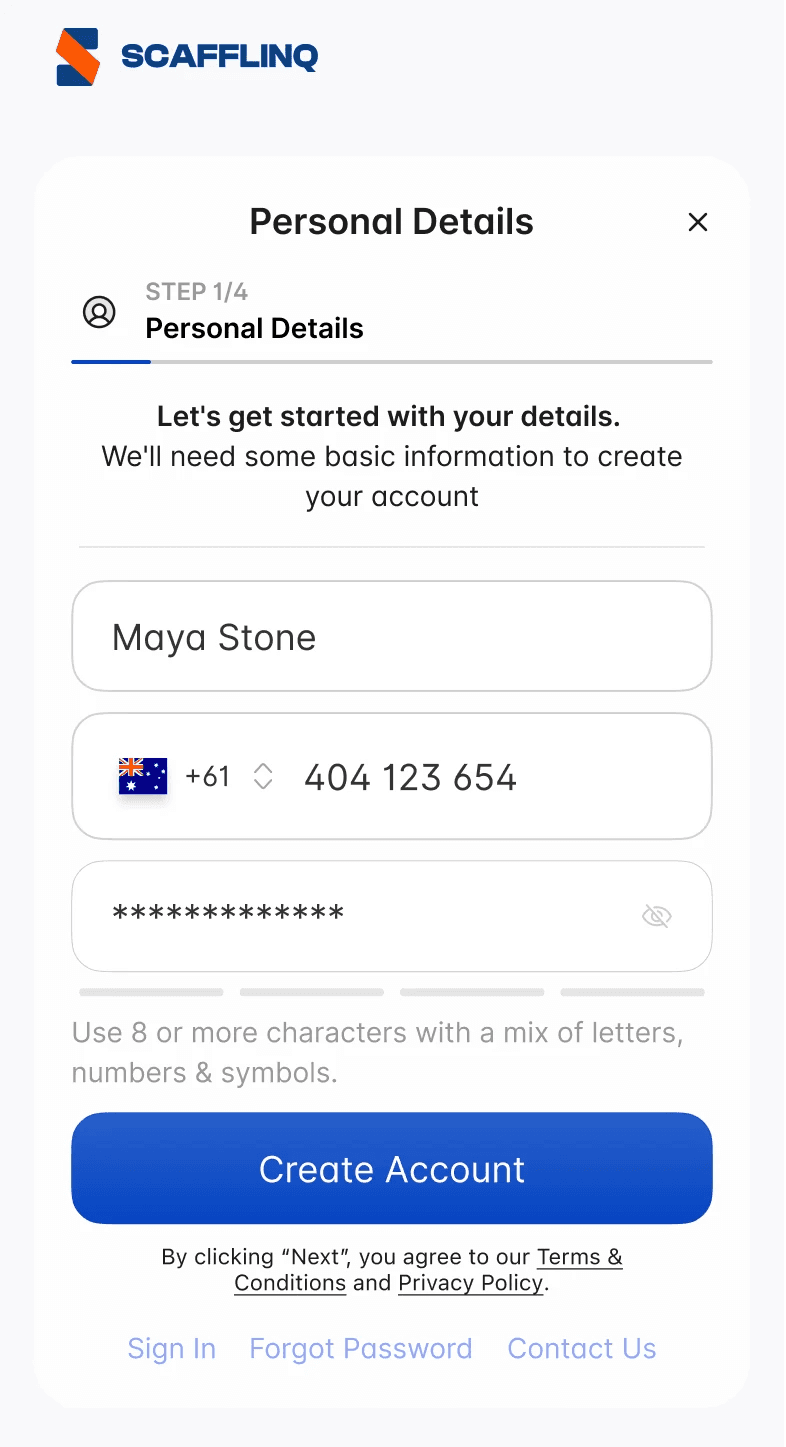
Fill in your personal details in the form. Fields marked with * are required.
3

Fill in your personal details in the form. Fields marked with * are required.

3

Fill in your personal details in the form. Fields marked with * are required.


4

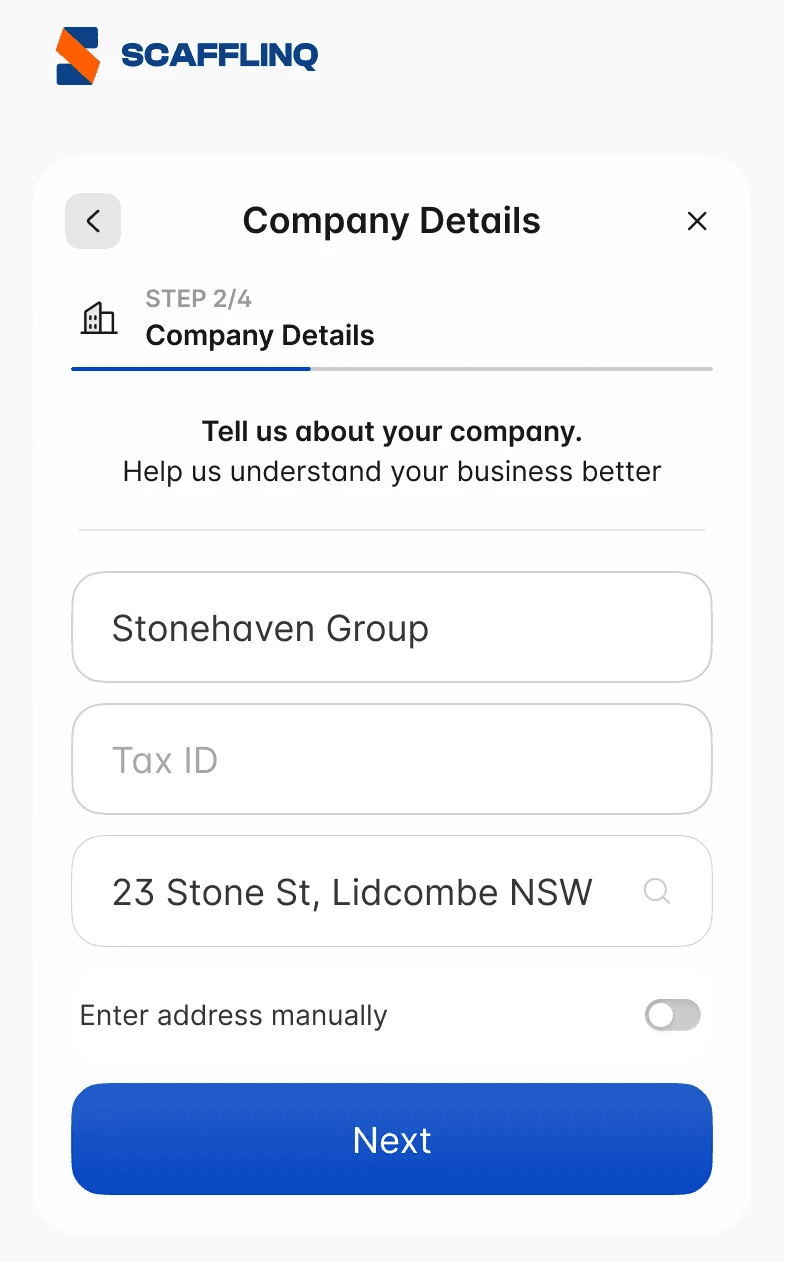
Add your company details (name, tax/business ID if applicable, and address).
4

Add your company details (name, tax/business ID if applicable, and address).

4

Add your company details (name, tax/business ID if applicable, and address).


5

We’ll email you a verification code; check your inbox and Spam/Junk folder.

5

We’ll email you a verification code; check your inbox and Spam/Junk folder.

5

We’ll email you a verification code; check your inbox and Spam/Junk folder.


6

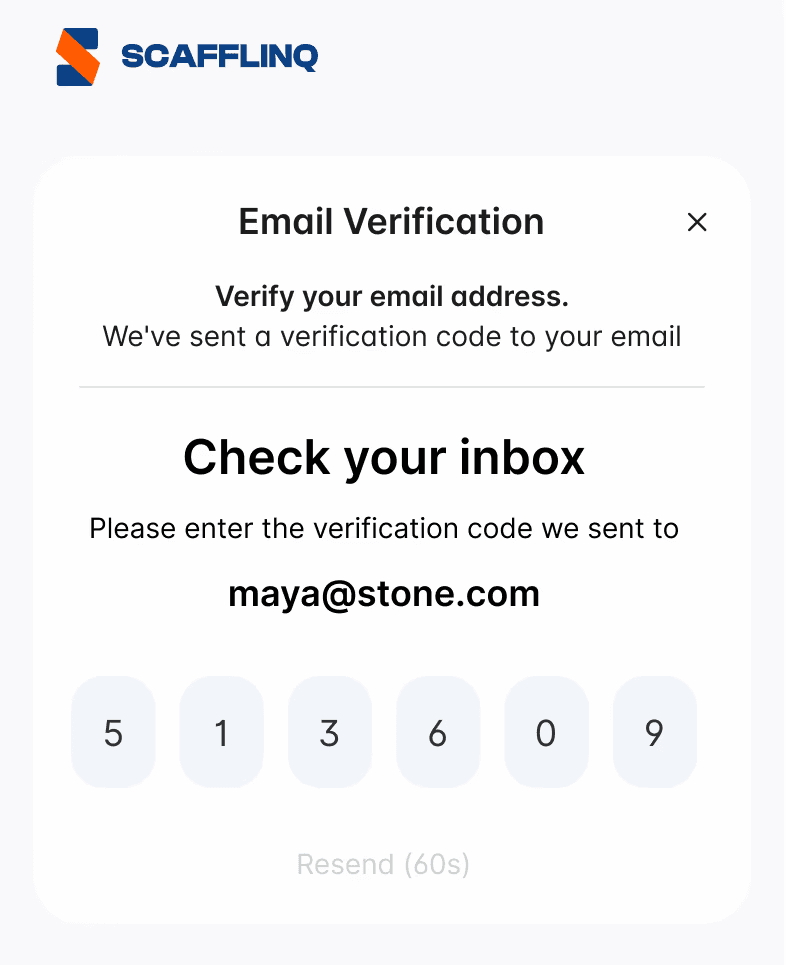
Enter the verification code on screen, or request a new one if needed.
6

Enter the verification code on screen, or request a new one if needed.

6

Enter the verification code on screen, or request a new one if needed.


7

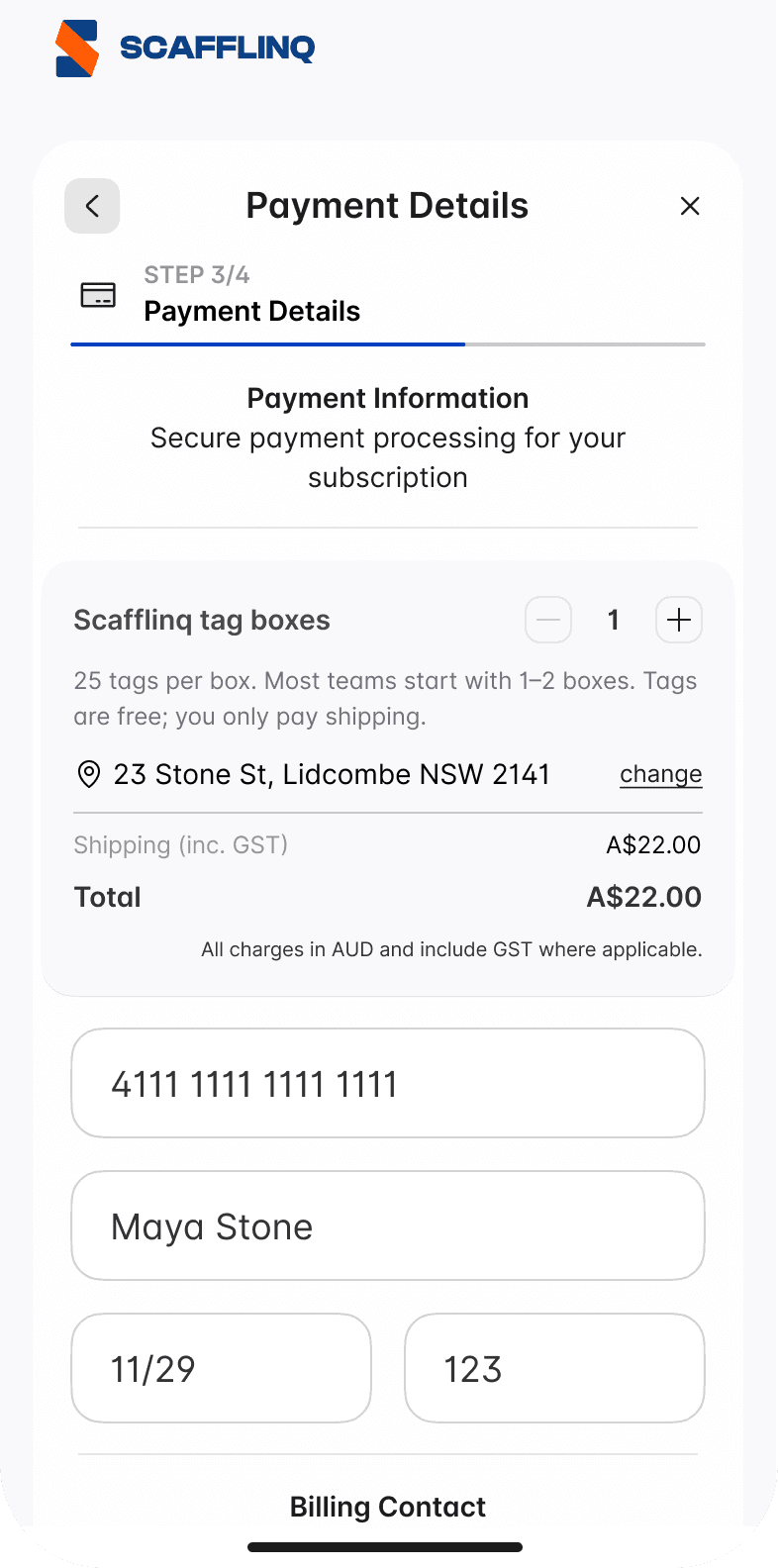
Select how many boxes of tags to order, then add your card and billing details.
7

Select how many boxes of tags to order, then add your card and billing details.

7

Select how many boxes of tags to order, then add your card and billing details.


8

Optionally, add your job title and how you heard about Scafflinq, then tap "Get Started".
8

Optionally, add your job title and how you heard about Scafflinq, then tap "Get Started".

8

Optionally, add your job title and how you heard about Scafflinq, then tap "Get Started".


Congratulations

Your Scafflinq account is created and your starter order will be processed. You’ll be redirected to the Reporting overview screen in the app, where you can see a summary of your account and start setting up projects, scaffolds and inspections.


Congratulations

Your Scafflinq account is created and your starter order will be processed. You’ll be redirected to the Reporting overview screen in the app, where you can see a summary of your account and start setting up projects, scaffolds and inspections.

Congratulations

Your Scafflinq account is created and your starter order will be processed. You’ll be redirected to the Reporting overview screen in the app, where you can see a summary of your account and start setting up projects, scaffolds and inspections.


© 2026 Construction Tag Technologies Pty Ltd. All Rights Reserved.

Back to top

© 2026 Construction Tag Technologies Pty Ltd.
All Rights Reserved.

Back to top

© 2026 Construction Tag Technologies Pty Ltd. All Rights Reserved.

Back to top