Project map view
Every project on a map, colour-coded by safety status, so you know where to look before you start looking.
A list tells you what you have. A map tells you where it is.
When your projects are spread across a city, a region, or several sites in the same suburb, a list of project names doesn't help you plan the day. It doesn't show you that two of your red projects are fifteen minutes apart, or that the one your inspector is driving past this afternoon is the one that's overdue.
So we put your projects on a map.
The Map View
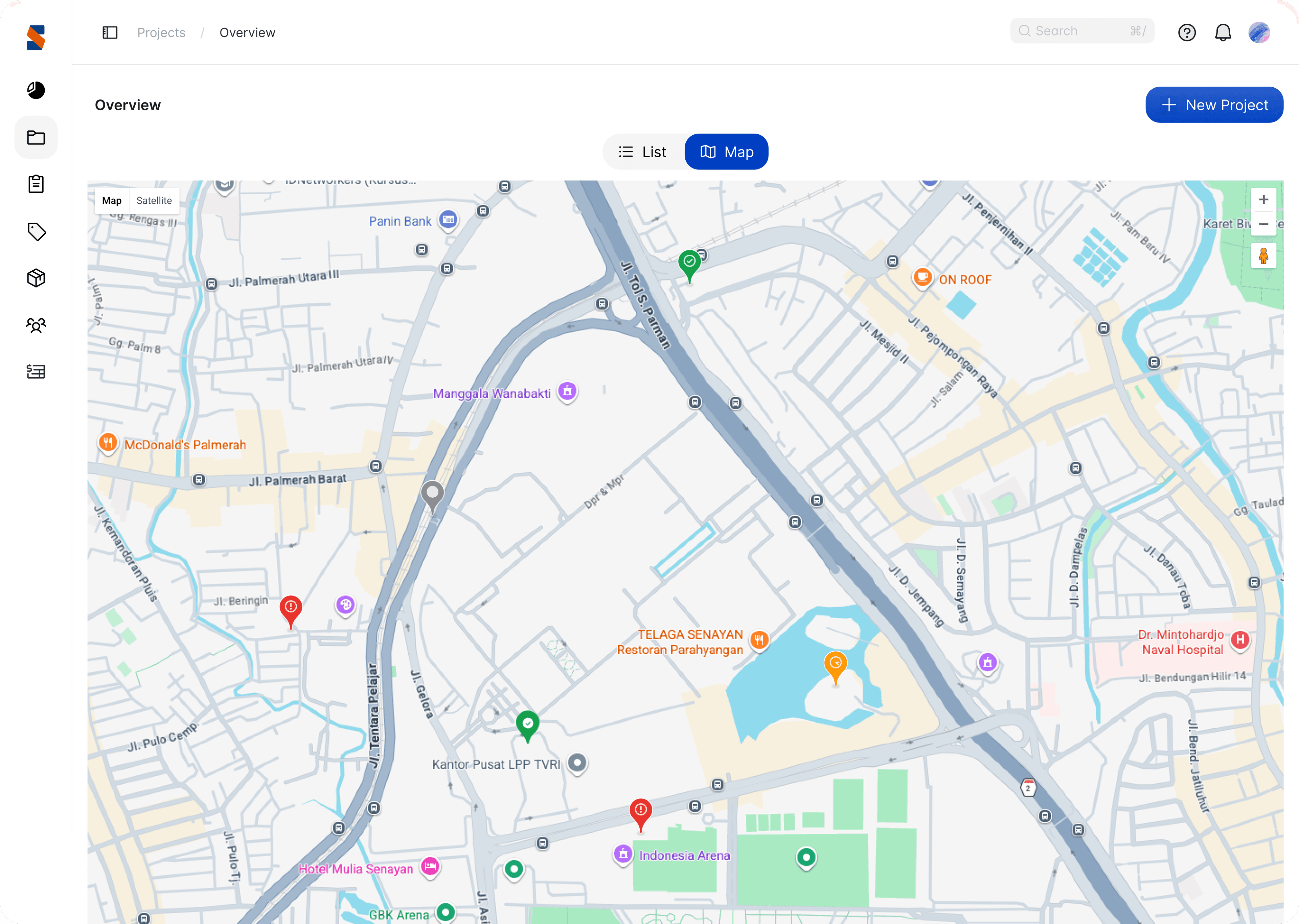
Introducing Map view: a new way to see Projects & Scaffolds.
Open Projects & Scaffolds in the web portal and you'll see a new tab group above your projects:
- List — the view you already know, and still the default
- Map — new
Click Map and every project drops onto an interactive map as a pin. Pan, zoom, switch between Map and Satellite, and see your entire operation laid out geographically.
Nothing about the List view changes. It's still there, still the default, still where you'll do most of your day-to-day work. Map is simply another way to look at the same projects.
Pins are colour-coded, using the traffic light system you already know
Each pin represents one project, and its colour reflects the worst status of any scaffold within it:
🔴 Red — Unsafe. One or more scaffolds in the project are unsafe. That covers both cases: a scaffold an inspector has deemed unsafe, and a scaffold whose inspection is now overdue.
🟠 Amber — Upcoming. One or more scaffolds have an inspection coming up. Nothing is wrong yet, but it's on the clock.
🟢 Green — Safe. Every scaffold in the project is safe.
⚪ Grey — Dismantled or archived. The project has been archived, or every scaffold in it has been dismantled.
One glance across the map tells you where your risk is concentrated and where your day should start.
The Project Popover
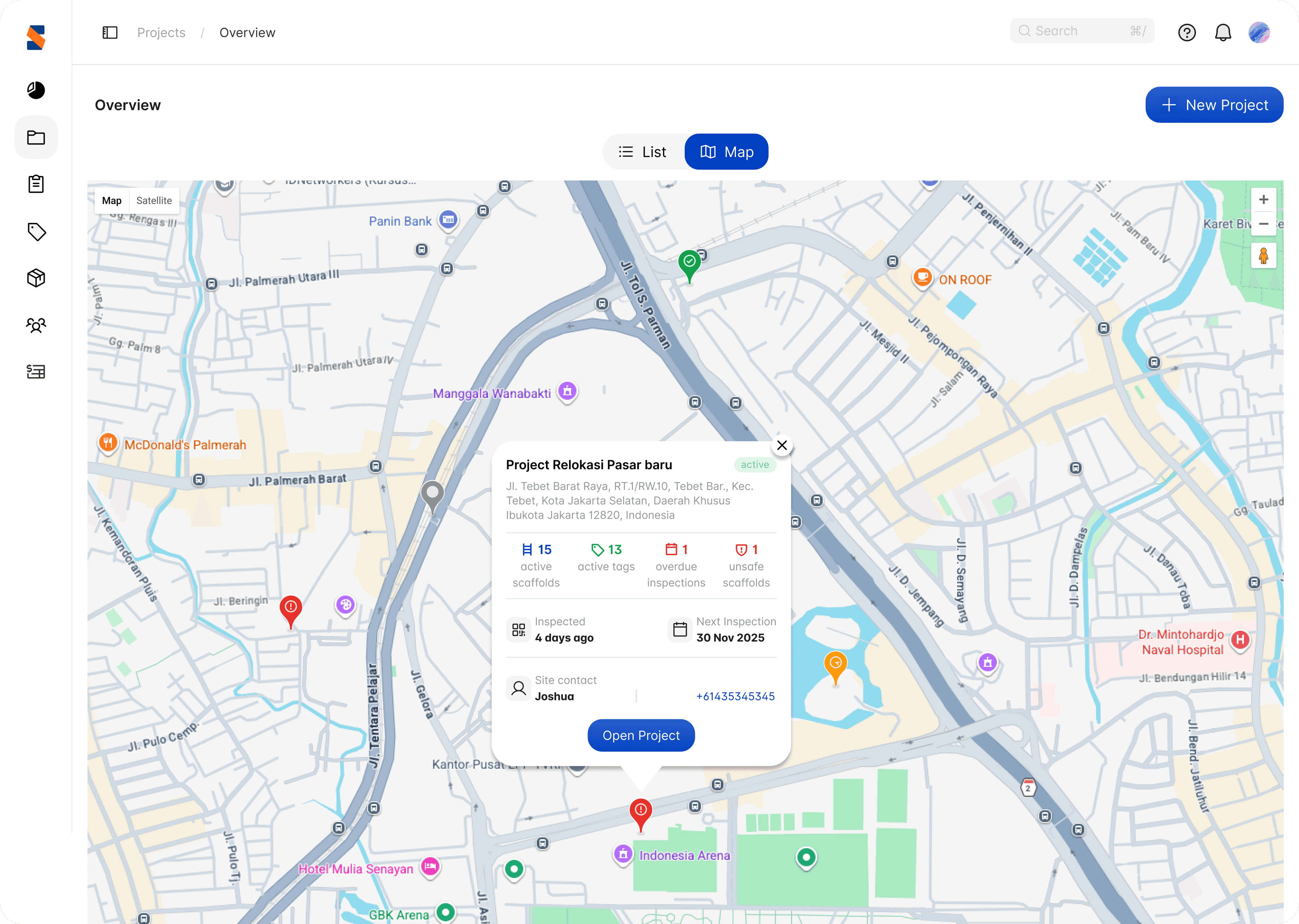
Click any pin for the full picture, without leaving the map.
Clicking a marker opens a summary card for that project:
- Project name and status — active, archived, and so on
- Full site address
- Active scaffolds — how many are standing
- Active tags — how many tags are live
- Overdue inspections — the number past due
- Unsafe scaffolds — the number currently unsafe
- Last inspected — when someone was last on site
- Next inspection — when it's due again
- Site contact — name and phone number, ready to call
That's the whole triage in one card. Is this project actually a problem, how big is the problem, and who do I ring about it?
When you need to go deeper, hit Open Project and you're straight into the project itself.
Can't see one of your projects?
If a project isn't showing on the map, it's almost always the address.
The map places pins using the address on the project record, so if that address is incomplete, misspelled, or doesn't resolve to a real location, we can't place the pin. Open the project, edit the project address so it's a complete, accurate street address, and the pin will appear on the map.
It's a good prompt to tidy up addresses generally. Accurate site addresses don't just fix the map — they make handover certificates, reports, and anything else you hand to a client that much cleaner.
Getting started
Map view is available now in the web portal for everyone. There's nothing to enable and nothing to configure.
Log in, open Projects & Scaffolds, and click Map.
Because knowing which projects need attention is only half the question. The other half is where they are.

Put Scafflinq to work on site
Start free with 5 digital scafftags, or book a demo to see the full platform.