How to sign up your company

You can create your Scafflinq account in two ways: on the web or in the mobile app . The steps are very similar – choose whichever option suits you best.

Signing up on the web

1Open your browser and navigate to: https://app.scafflinq.com/signup

The Scafflinq web sign-up page

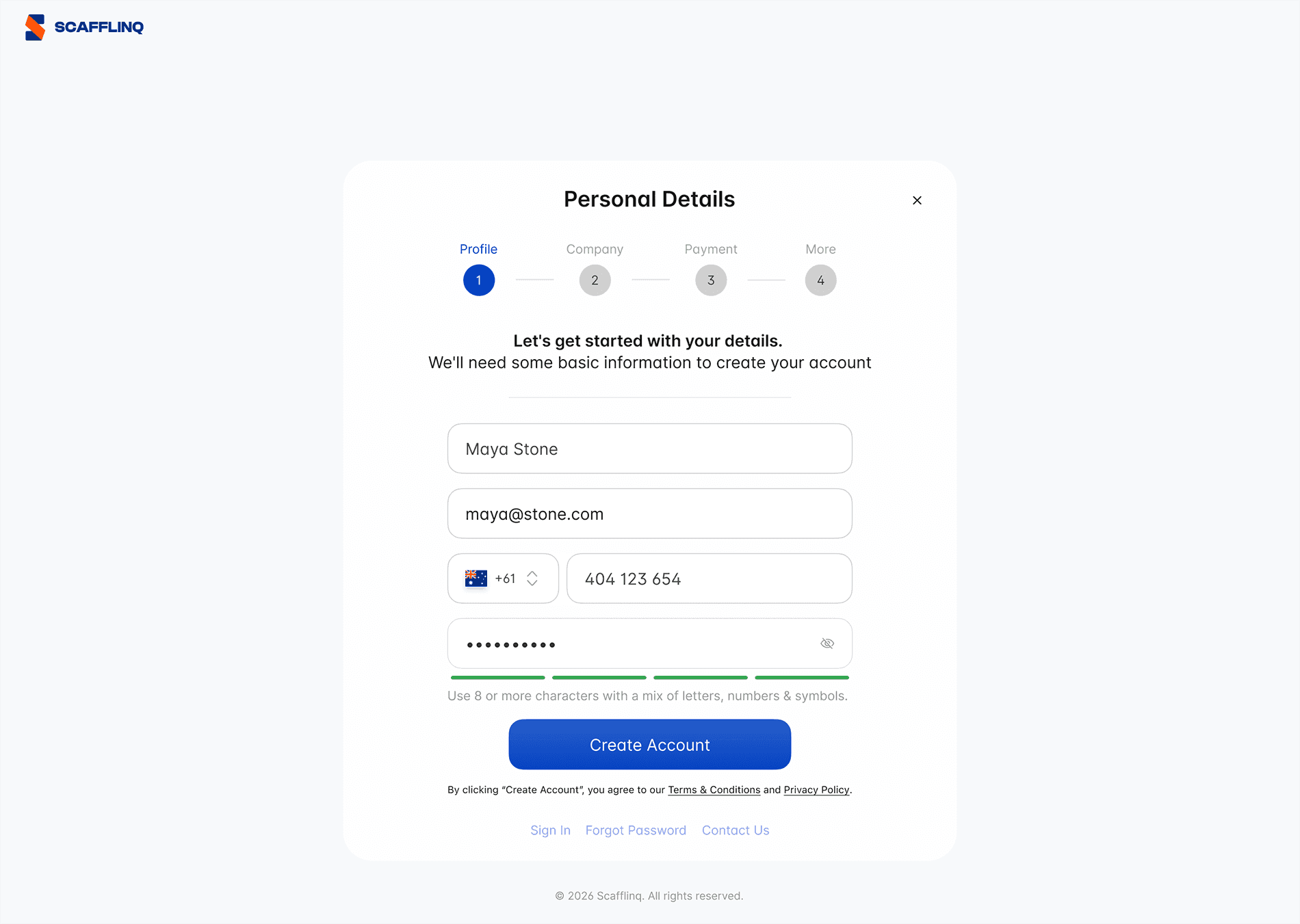
2Fill in your personal details; fields marked * are required.

Filling in your personal details on the web sign-up form

3Add your company details (name, tax/business ID if applicable, and address).

Adding your company name, business ID and address during sign-up

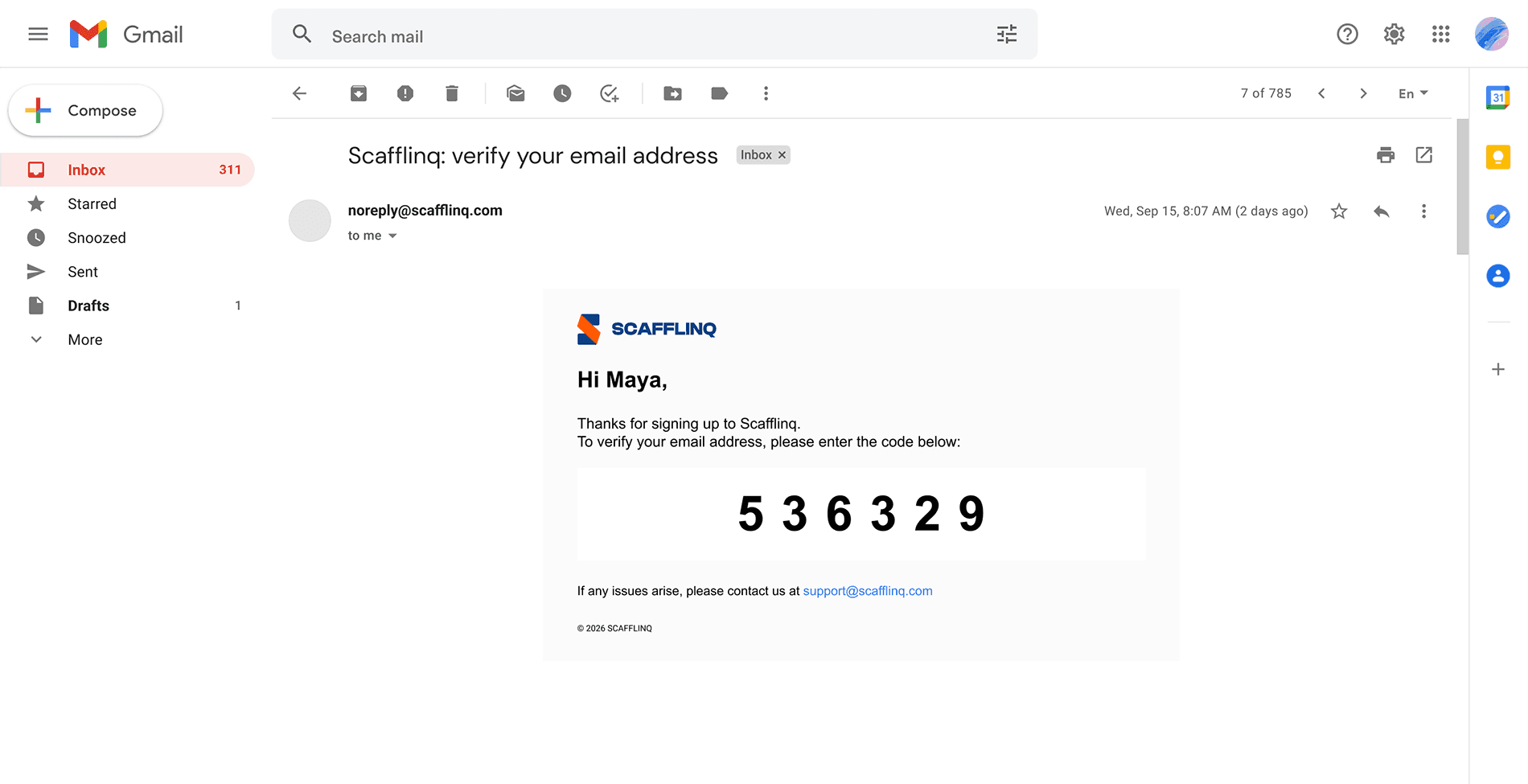
4We’ll email you a verification code; check your inbox and Spam/Junk folder.

The verification code email step during company sign-up

5Enter the verification code on screen, or request a new one if needed.

Entering the emailed verification code during sign-up

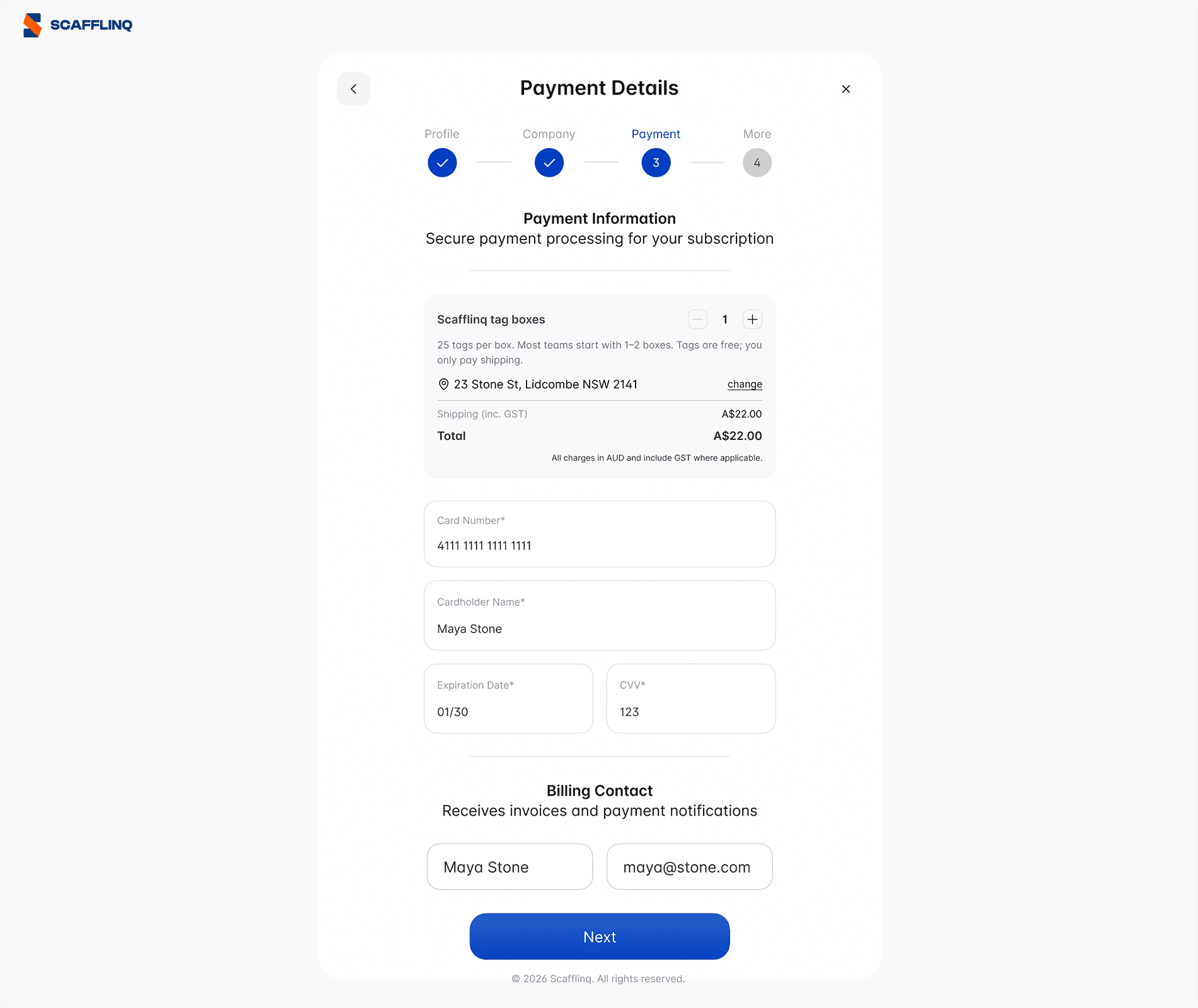
6Select how many boxes of tags to order, then add your card and billing details.

Choosing how many tag boxes to order and adding billing details

7Optionally, add your job title and how you heard about Scafflinq, then click "Get Started".

Adding optional job title details before finishing web sign-up

Congratulations

Your Scafflinq account is created and your starter order will be processed.

You’ll be redirected to your Reporting dashboard, where you can see an overview of your account and start setting up projects, scaffolds and inspections.

—————

Signing up in the mobile app

1Install the Scafflinq app and open it once it's installed.
Download Scafflinq on the App StoreGet Scafflinq on Google Play
2Select the option which best represents you.
  • If you own or manage scaffolding and need to perform inspections and manage compliance, choose Create Account.

  • If you're a builder, tradesperson, safety inspector or other role and only need to view scaffold status, you don't need an account. Choose Scan Tag to scan the QR code on the tag to see its status and details.
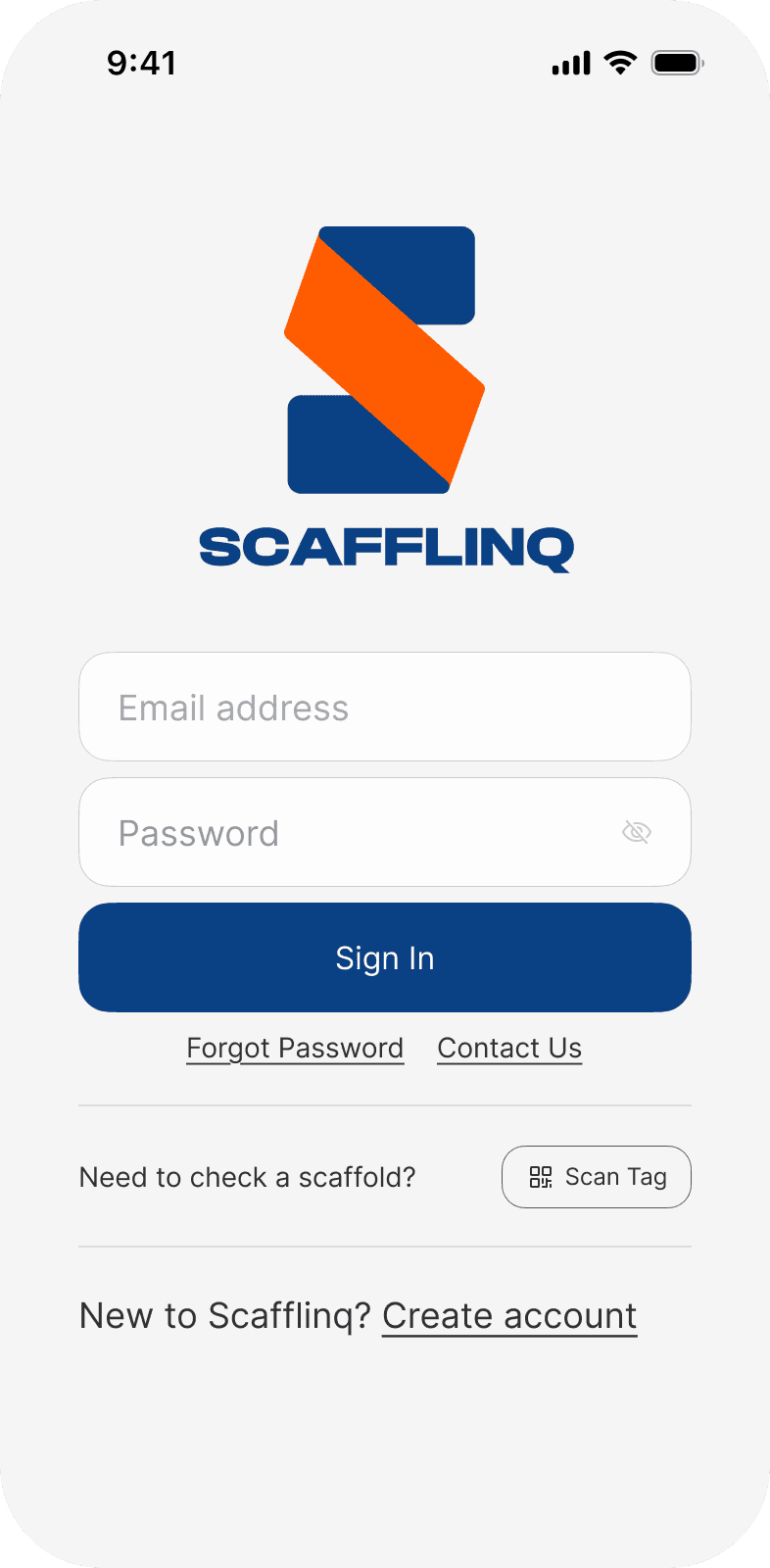
Choosing between Create Account and Scan Tag in the mobile app

3Fill in your personal details in the form. Fields marked with * are required.

Filling in your personal details in the mobile sign-up form

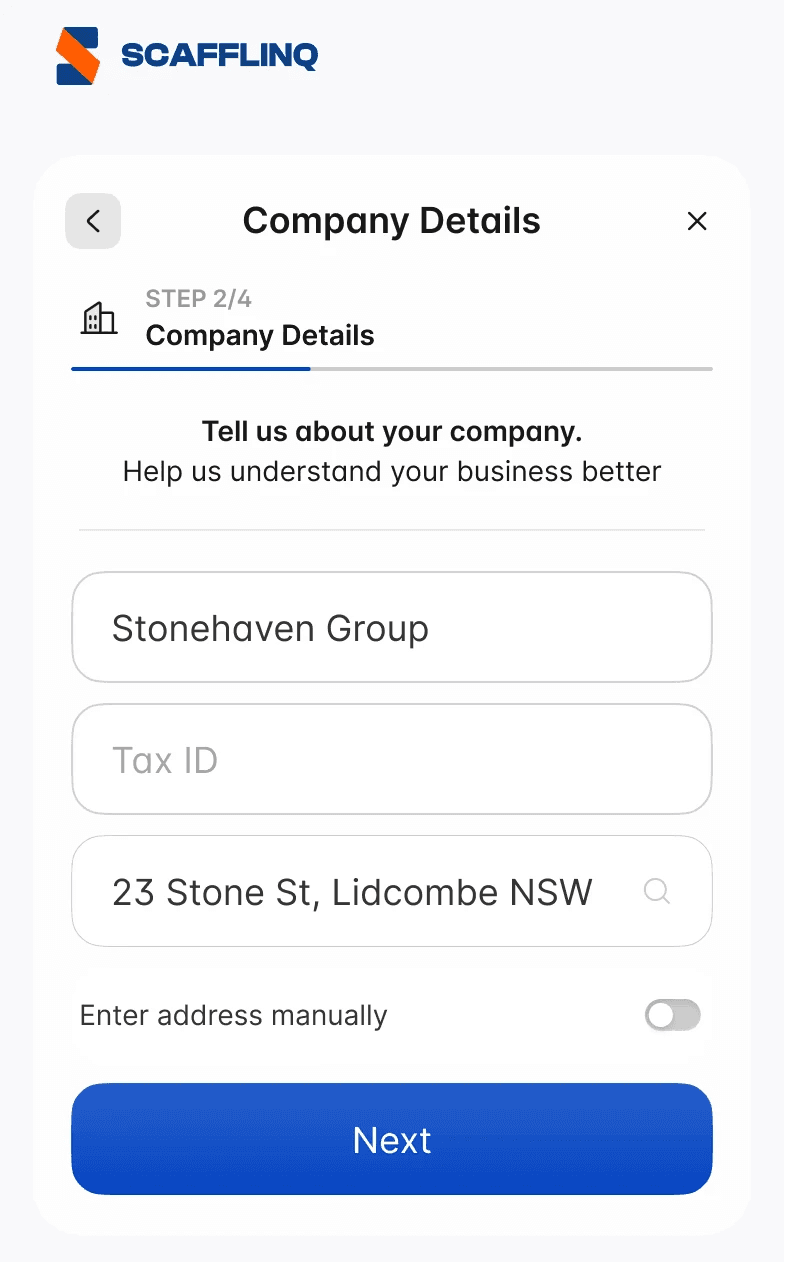
4Add your company details (name, tax/business ID if applicable, and address).

Adding your company details in the mobile sign-up form

5We’ll email you a verification code; check your inbox and Spam/Junk folder.

The verification code email step during company sign-up

6Enter the verification code on screen, or request a new one if needed.

Entering the verification code in the mobile sign-up form

7Select how many boxes of tags to order, then add your card and billing details.

Selecting tag boxes and entering billing details in the mobile app

8Optionally, add your job title and how you heard about Scafflinq, then tap "Get Started".

Adding optional details before finishing sign-up in the mobile app

Congratulations

Your Scafflinq account is created and your starter order will be processed.

You’ll be redirected to the Reporting overview screen in the app, where you can see a summary of your account and start setting up projects, scaffolds and inspections.