How to reset your password
You can reset your password on the web or in the mobile app .
Reset Password on the web
1Navigate to https://app.scafflinq.com/signin and click
Forgot Password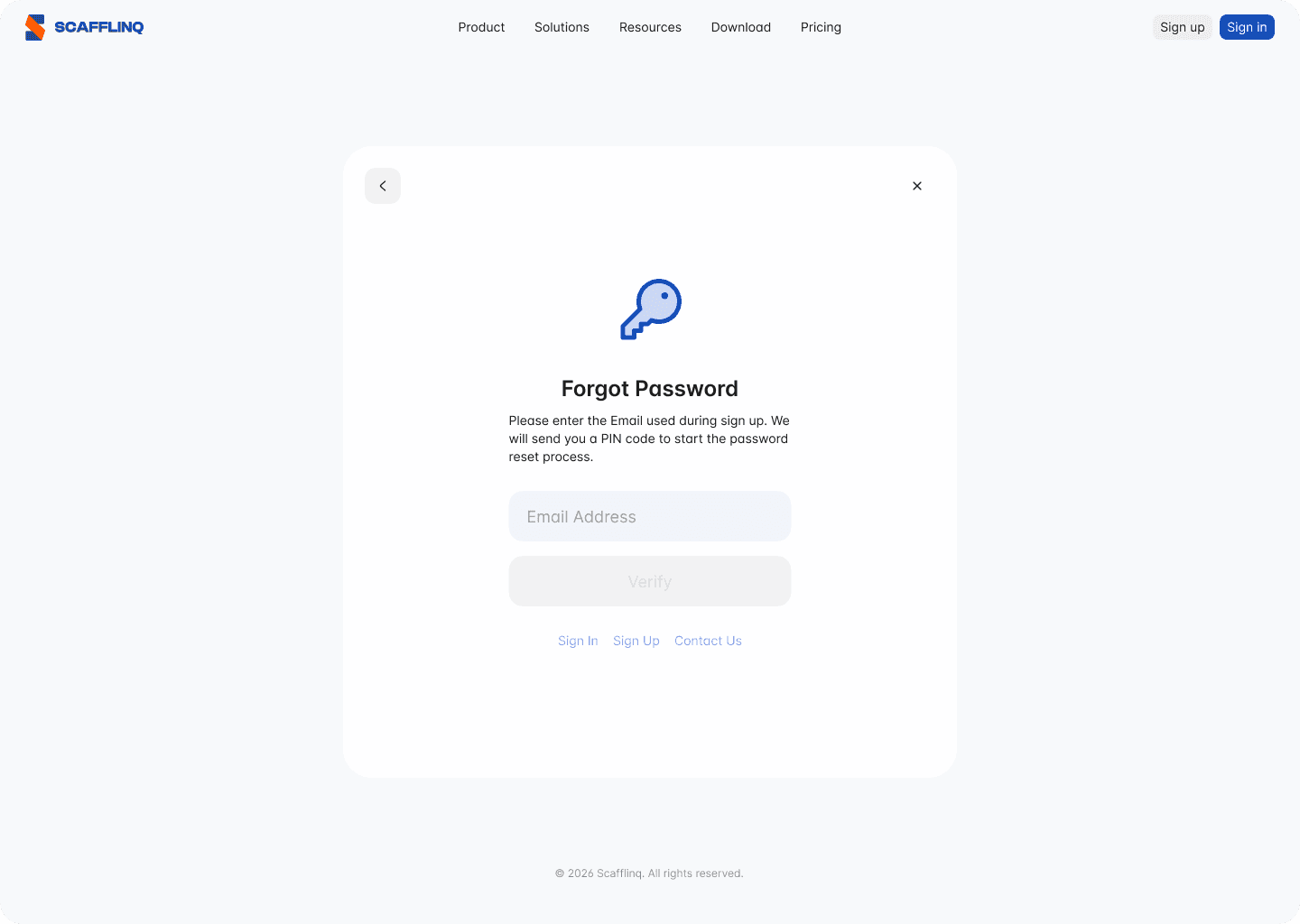
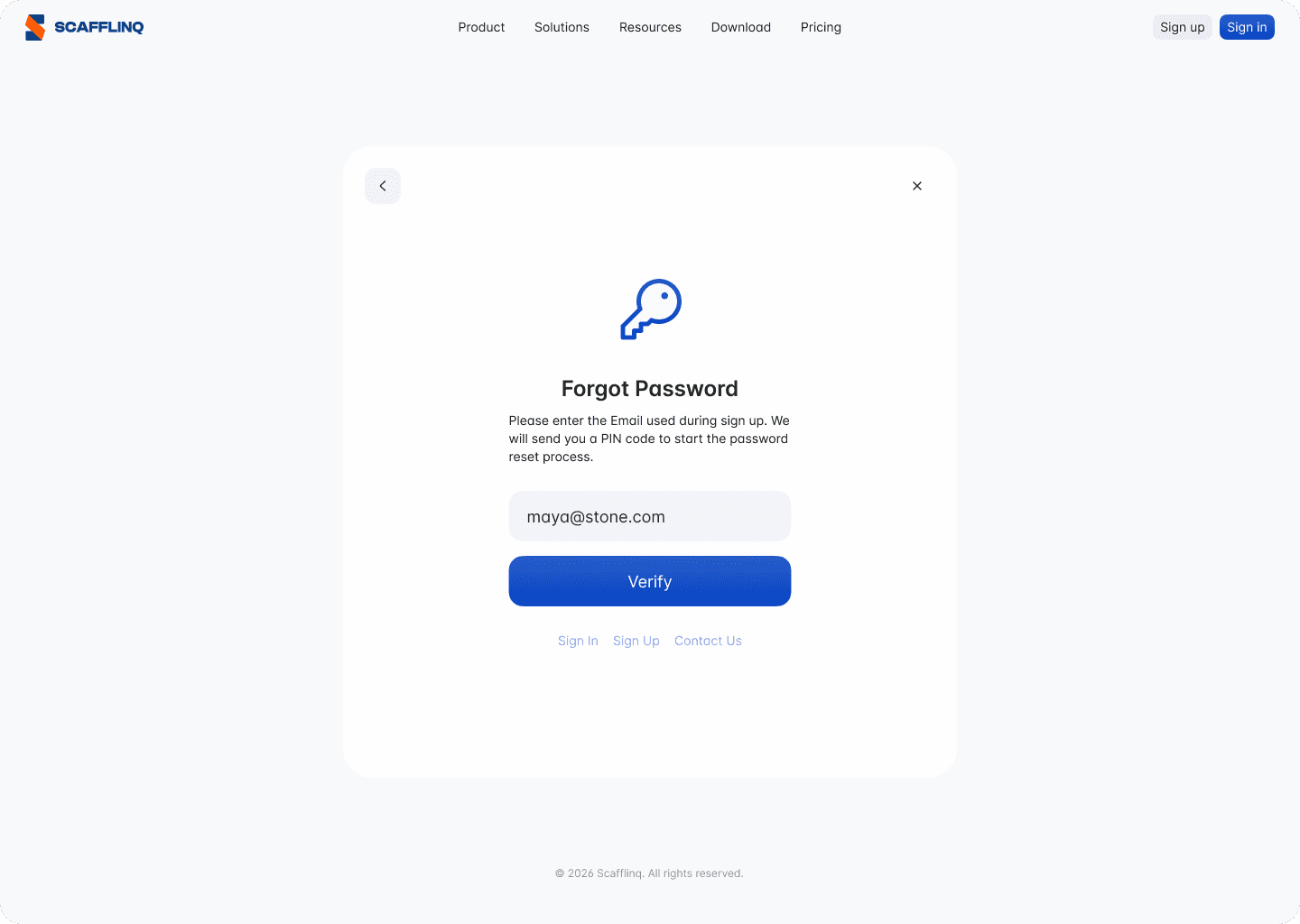
2Enter the email address you used to sign up for Scafflinq.
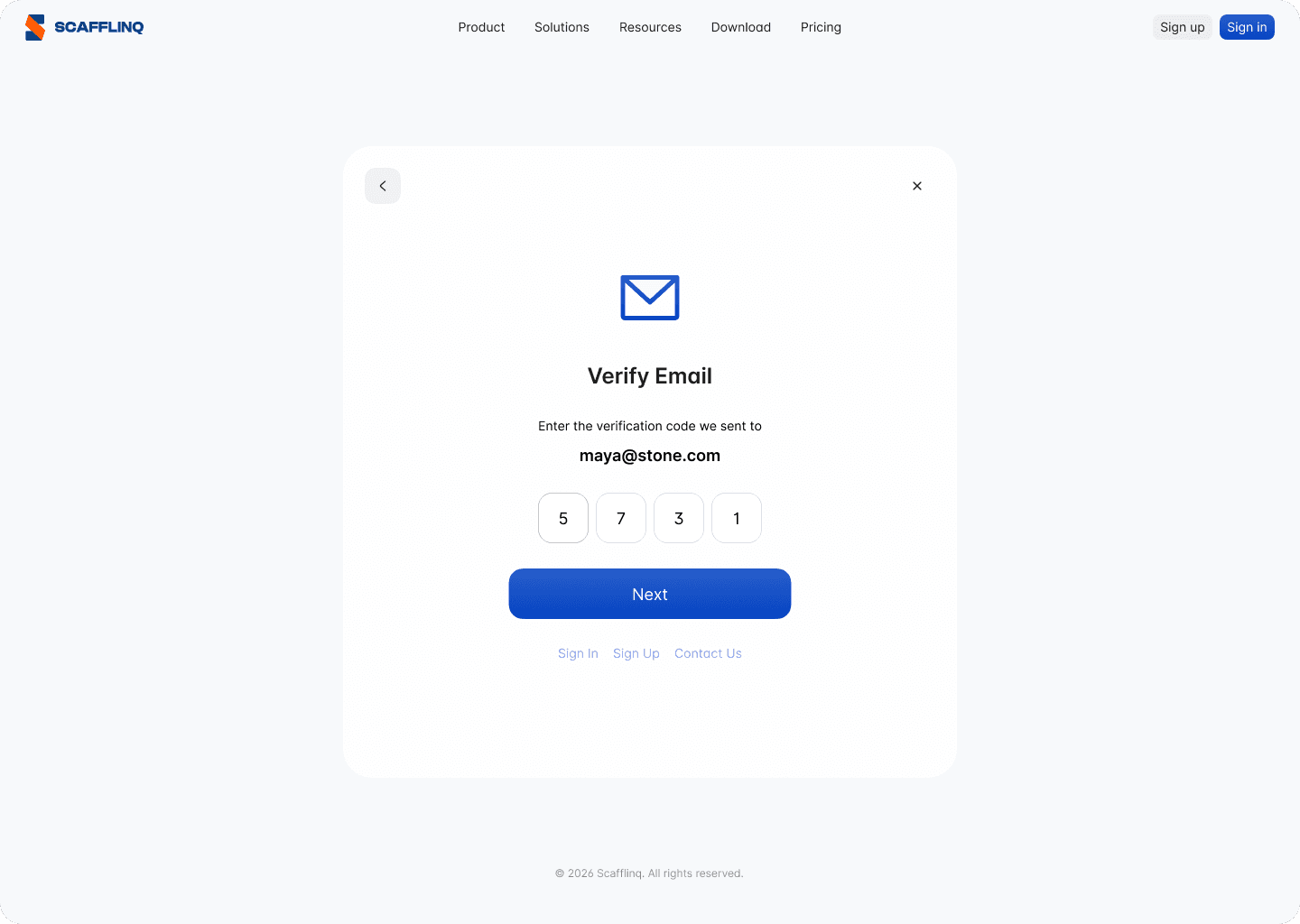
3Check your email for the Scafflinq verification code. If it's not in your inbox, please check spam/junk folders.
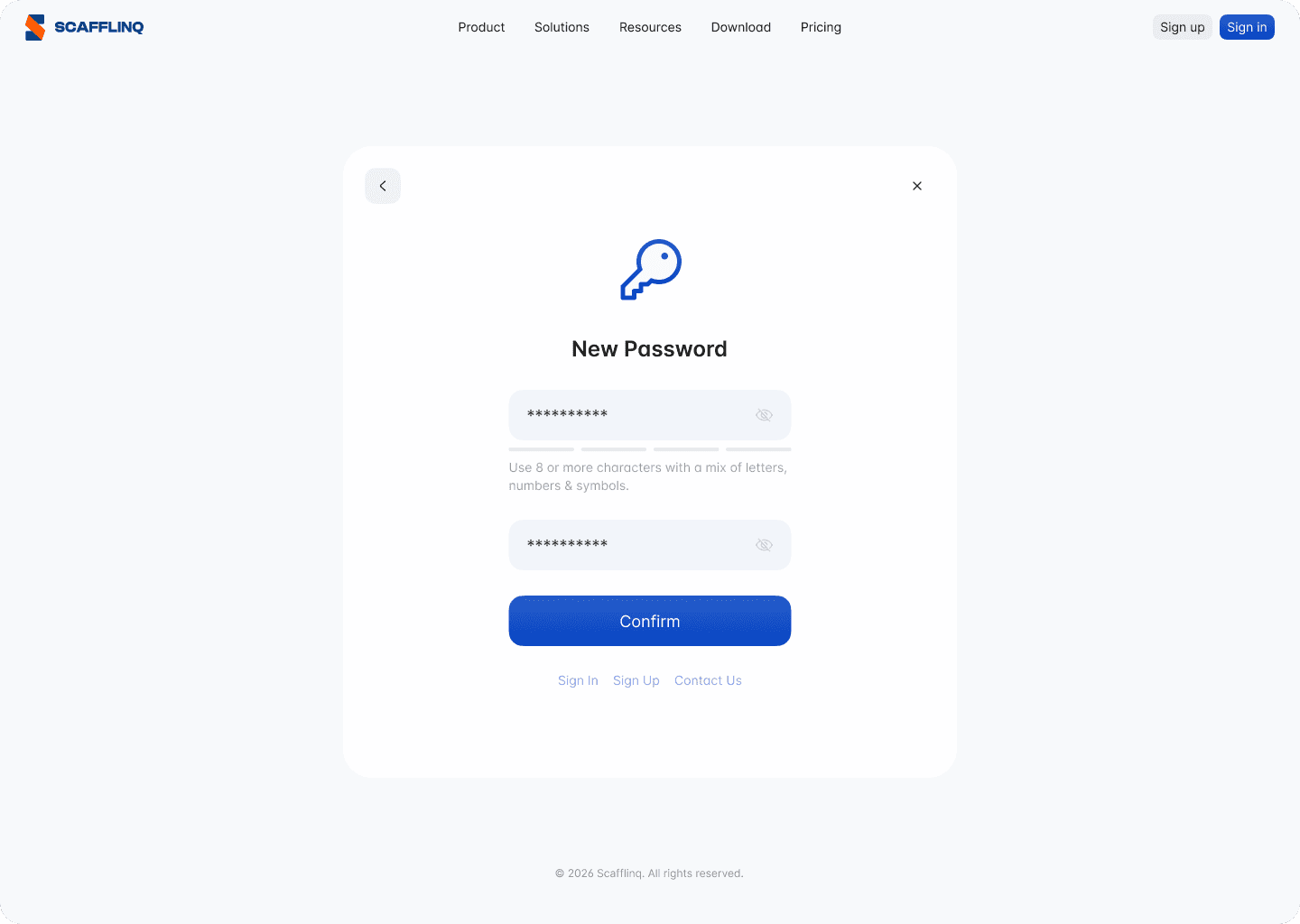
4Provide a new password (Use 8 or more characters with a mix of letters, numbers & symbols.)
Reset Password in the mobile app.
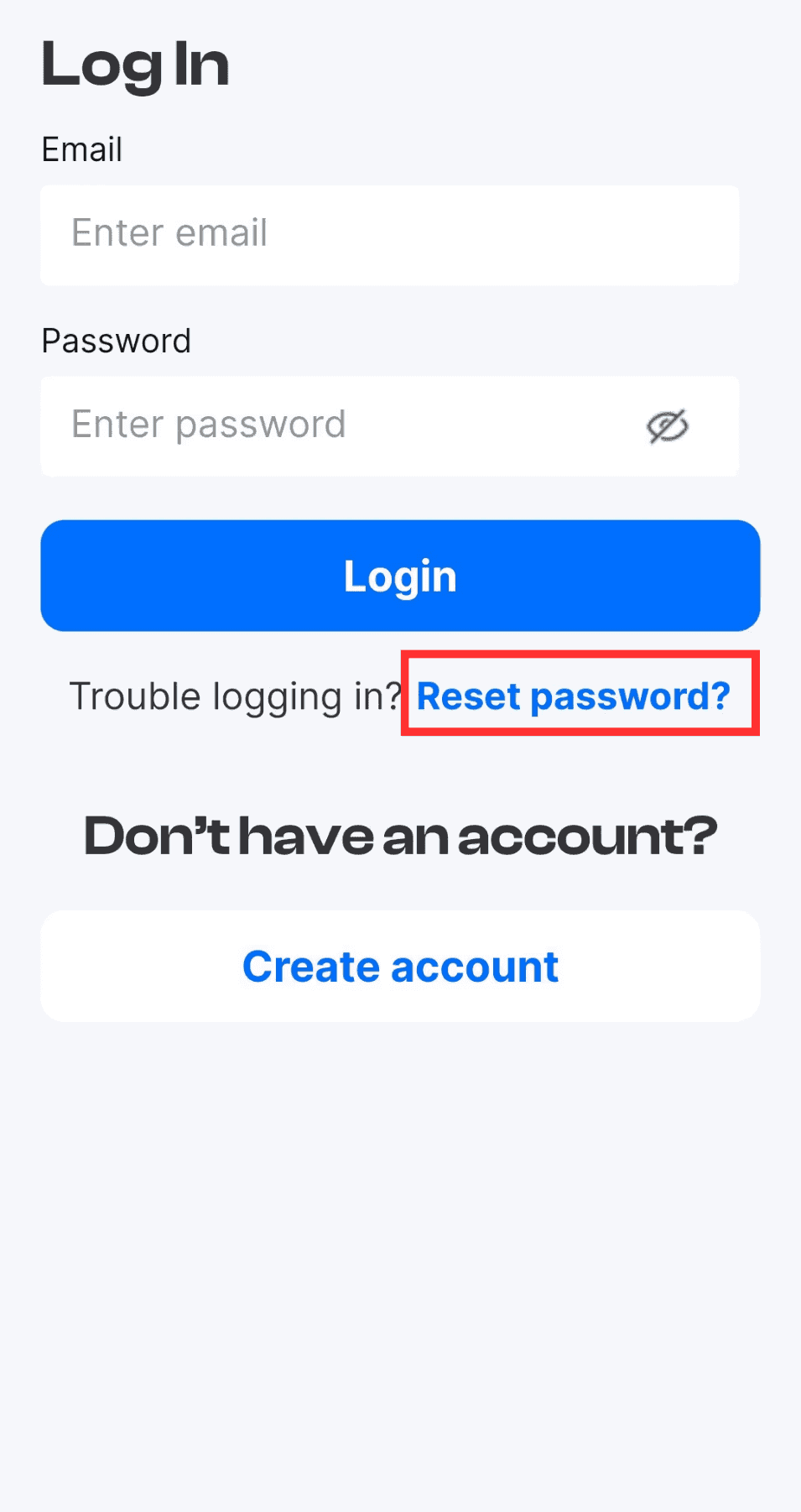
1Tap Reset password on the login screen of the Mobile App
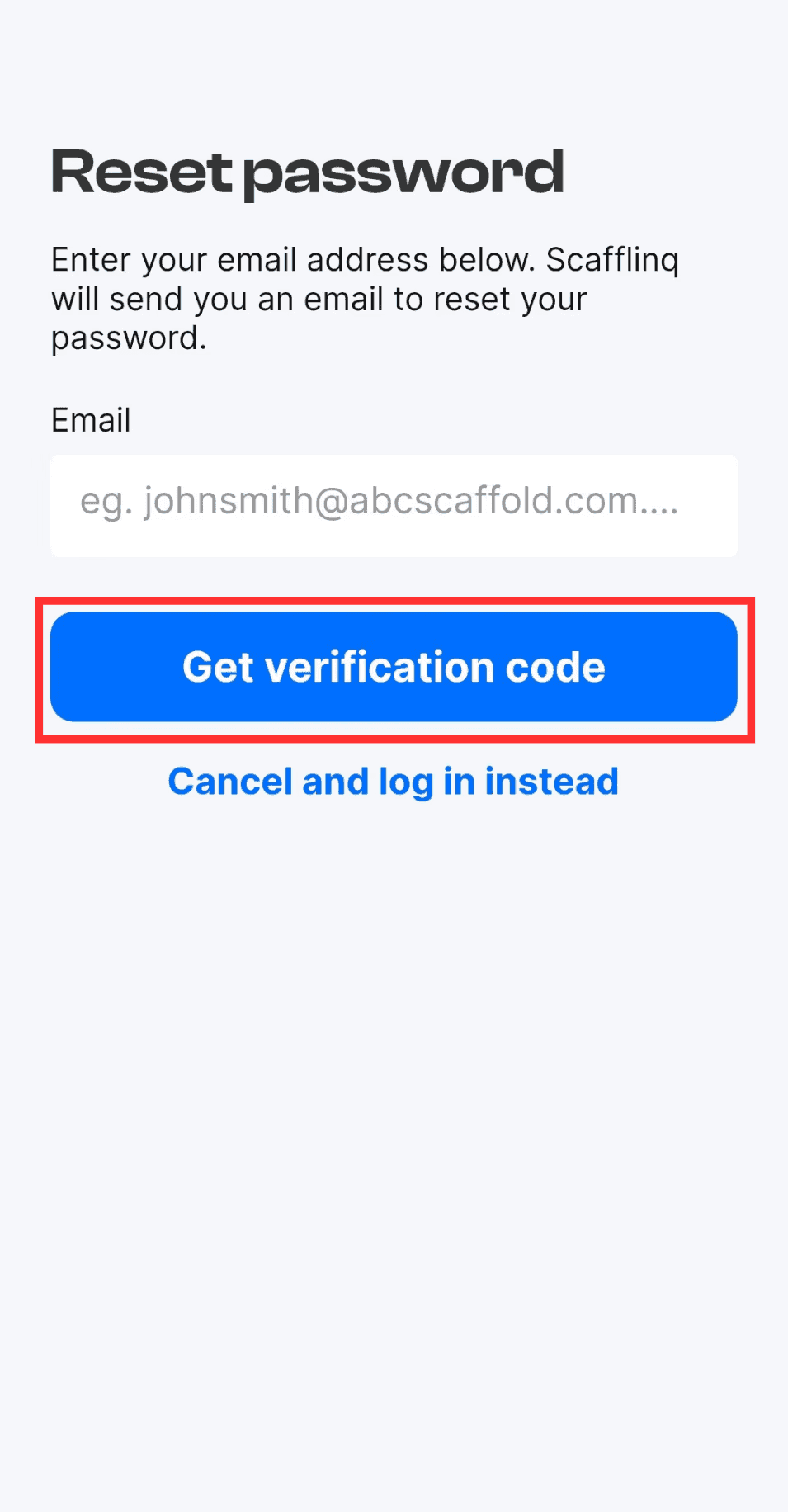
2Enter your email address and Tap Get verification code
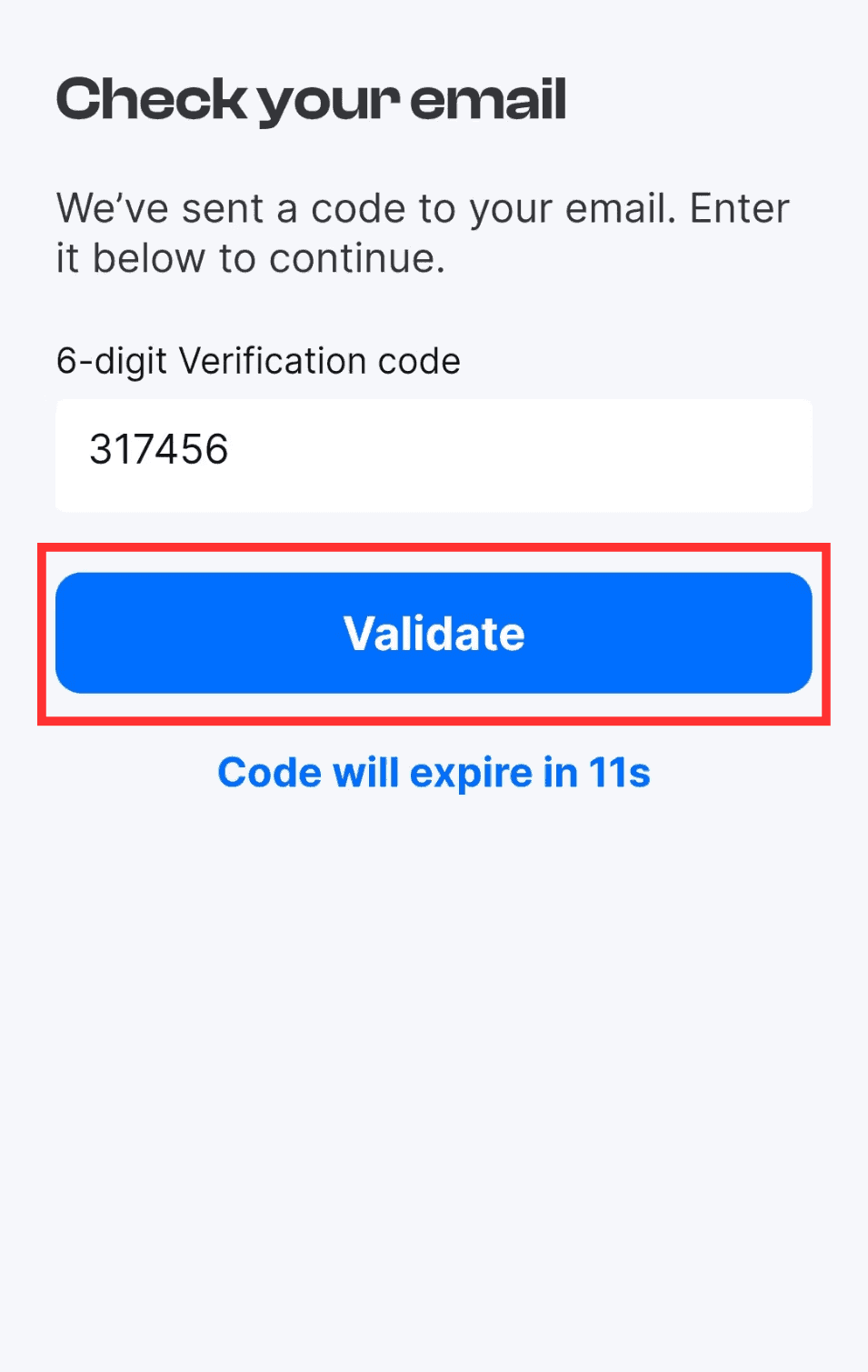
3Enter the 6-digit verification code you received in your email and Tap Validate.
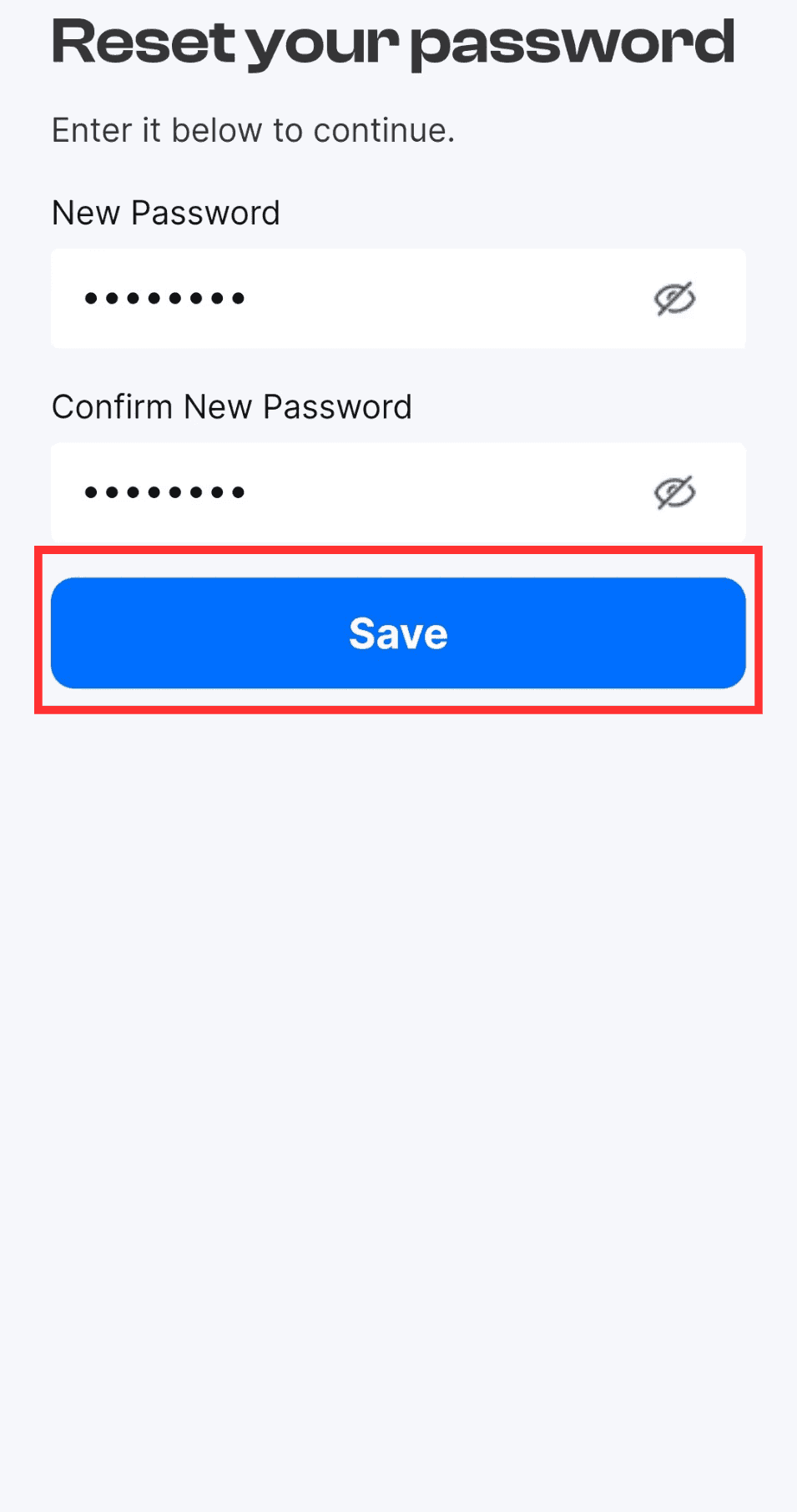
4Enter and confirm your New Password
Still got questions?
Pick whichever suits, we’ll get back to you either way.