You can only inspect a scaffold in the mobile app.
The Inspection screen can be accessed in one of two ways:
After onboarding a new scaffold
Once the scaffold details have been entered, the Inspection screen will open automatically so you can complete the first inspection and generate the handover.From an existing scaffold
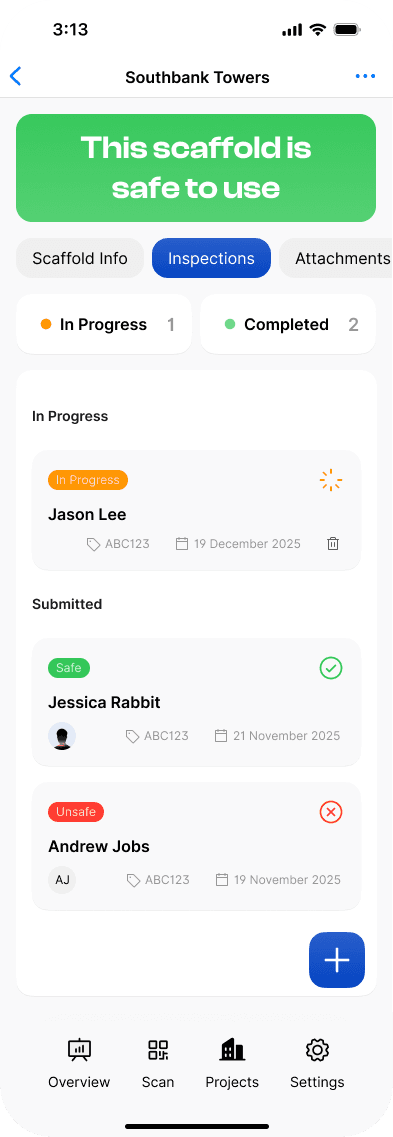
In the Scafflinq app, go to Projects, select the relevant project, select the scaffold you want to inspect, then tap the+button in the bottom-right corner of the screen.
Inspect a scaffold in the mobile app
1
Complete the applicable checklist items under each category, then tap Next.
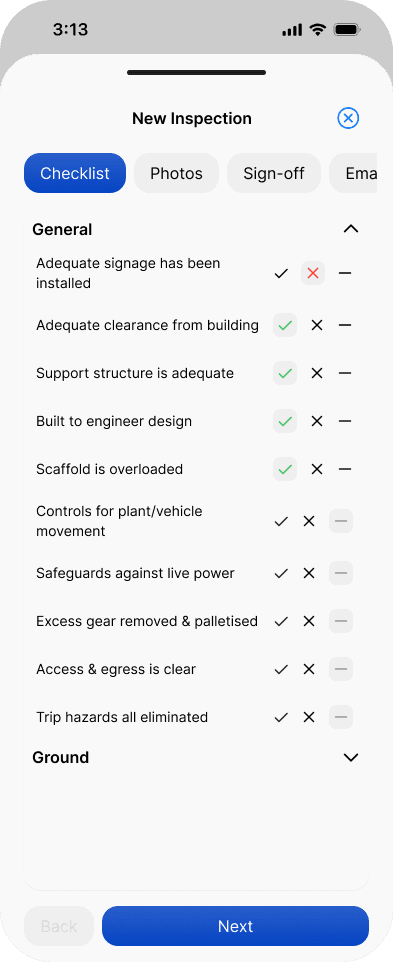
You can customise your inspection checklist from the web portal. More info here
2
Add up to 10 photos using your device’s camera or by selecting images from your phone album.
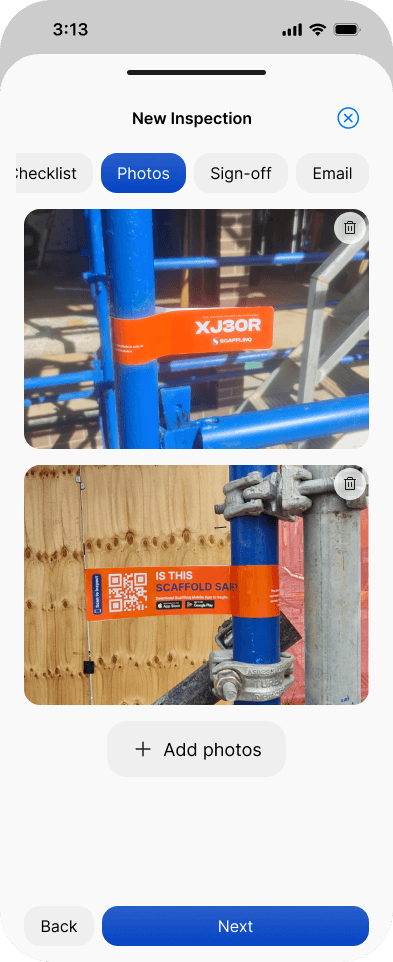
You can manually enter the Scafflinq tag code by tapping
Manually enter tag number.
3
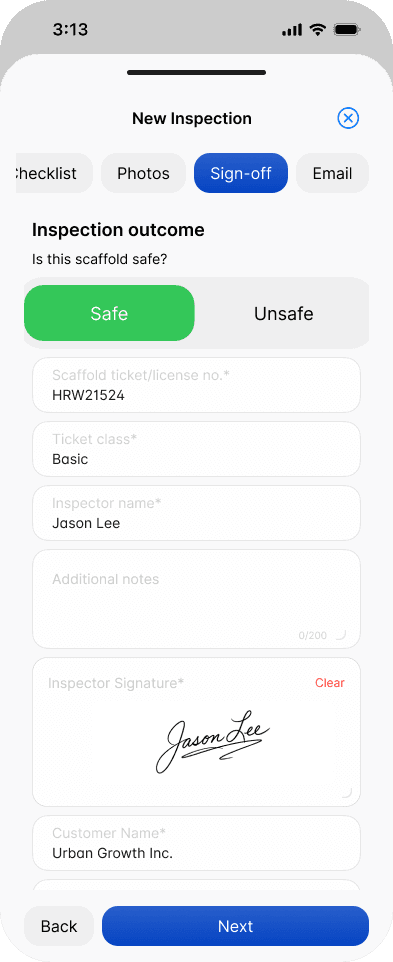
Select the inspection outcome and complete the required sign-off.
4
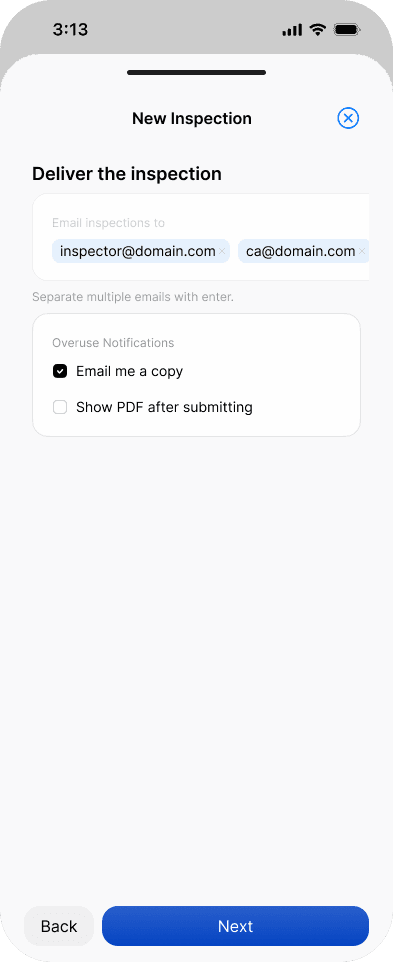
Specify the recipients who should receive the handover, if they have not already been populated from the project settings. You can also choose whether to receive a copy and whether to display the PDF after submitting.
5
Once submitted, the new inspection will be added and will appear in the Scaffold Inspections list.
Related to Scaffolds & Inspections