You can only create a scaffold in the mobile app.
Scaffold fields explained
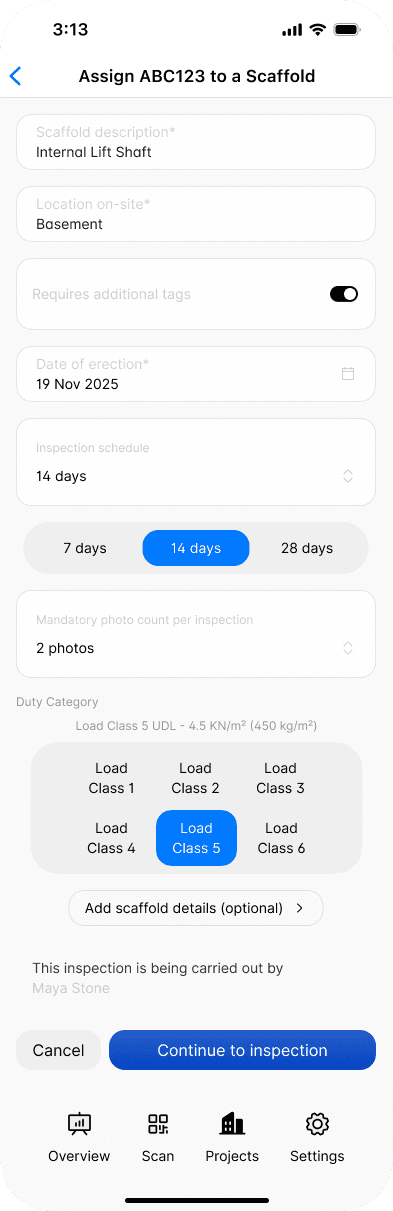
When adding a scaffold, you’ll be asked to complete the following fields.
Field | Meaning |
|---|---|
Scaffold description | Briefly describe the scaffold and its purpose. |
Location on-site | Specify where the scaffold is located on site. |
Date of erection | The date the scaffold was erected. |
Inspection schedule | How often the scaffold must be inspected, from 1 to 28 days. |
Mandatory photo count per inspection | The minimum number of photos required for each inspection. |
Duty Category | The scaffold duty category. |
Additional scaffold details (optional) | Add any extra details, such as building reference, level, scaffold width, scaffold system, access points, or other relevant notes. |
Add a scaffold in the mobile app
1
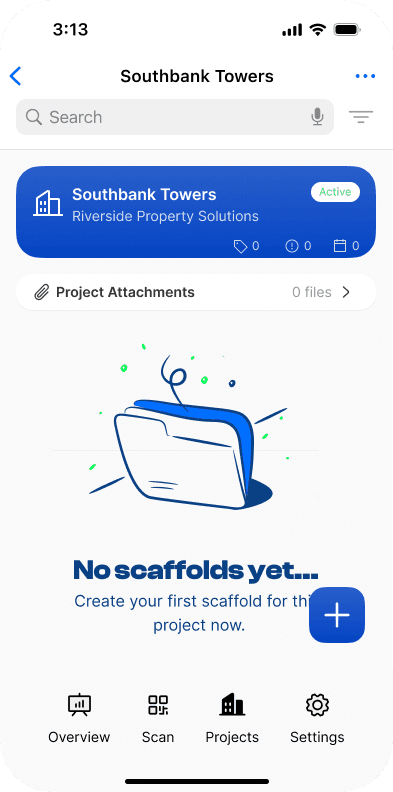
From the Scafflinq app, go to Projects and select the project where you want to onboard a new scaffold.
2
Tap the + button in the bottom-right corner of the screen to scan a new Scafflinq tag.
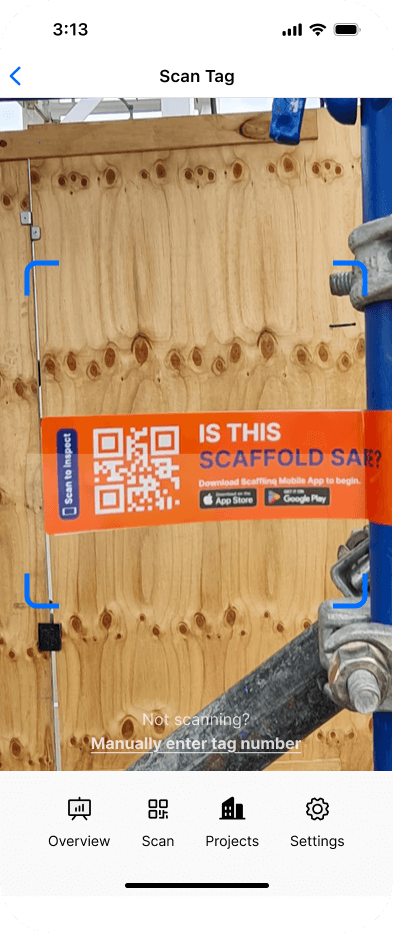
You can manually enter the Scafflinq tag code by tapping
Manually enter tag number
3
Fill out the scaffold details on screen, then tap Continue to inspection to create the handover.
4
Conduct your first scaffold inspection by following the guide here: https://scafflinq.com/help-centre/how-to-inspect-a-scaffold
Related to Scaffolds & Inspections